
What is an allowlist?
In general, an allowlist is a list of items approved to receive special privileges. You can add website URLs to an allowlist to view ads on websites that you want to support.
Adblock Plus uses smart allowlisting. When you add a website to your allowlist, it will remain allowlisted for seven days. If you visit the site again in those seven days, the allowlist will renew for another seven days. If you don't visit the site again within that time, the site will be removed from your allowlist.
Add a site to my allowlist
Chrome, Edge, Opera, Firefox
-
From the browser toolbar, click the Adblock Plus icon.
-
On the pop-up menu that appears, click the gear icon.
-
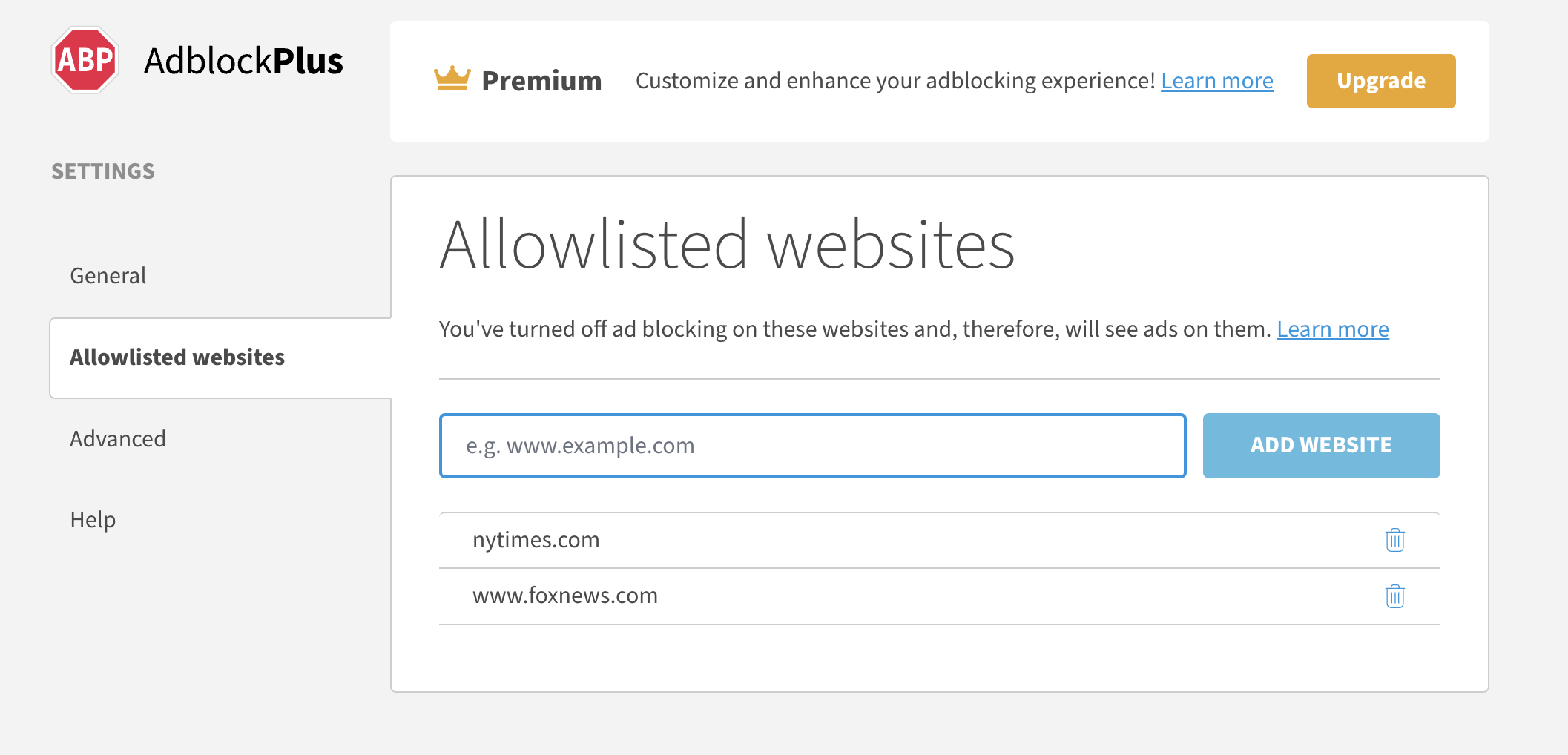
Click the Allowlisted websites tab.
-
Enter the website URL and click Add website.
Looking to remove a website from your allowlist? See this article.