Get started with Adblock Plus Premium

Chrome


Step 1 of 2

Pin the extension to access ABP anytime

1. From the Chrome toolbar, click on the puzzle icon to view a list of all your installed extensions.
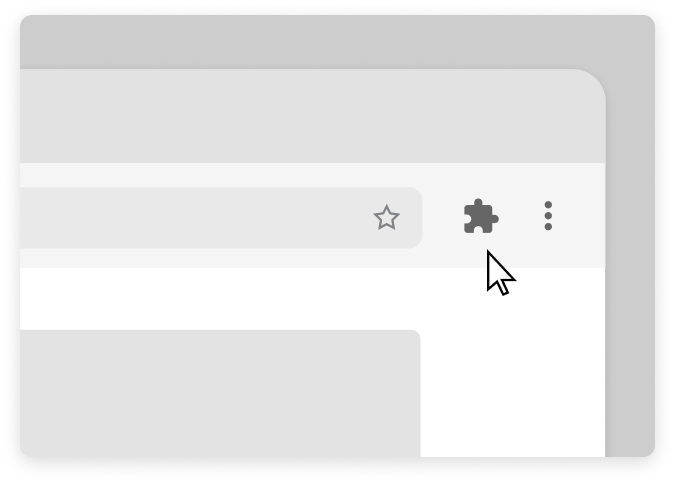
https://eyeo.atlassian.net/wiki/download/attachments/1828487256/69c2d52b511c2.chrome_extension_icon.png?version=1&modificationDate=1774376235383&cacheVersion=1&api=v2

2. Click on the pin icon next to the Adblock Plus extension. The pin icon will turn blue. 

https://eyeo.atlassian.net/wiki/download/attachments/1828487256/69c2d52c0746f.chrome_pin_icon__1.png?version=1&modificationDate=1774376236102&cacheVersion=1&api=v2

3. The Adblock Plus icon now appears on the toolbar to the right.
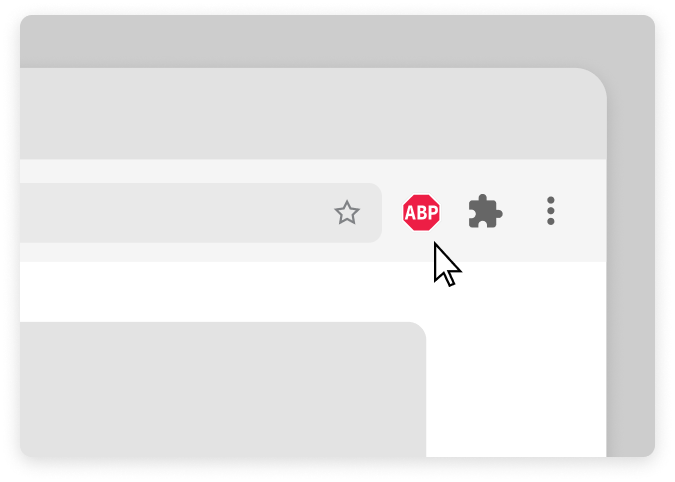
https://eyeo.atlassian.net/wiki/download/attachments/1828487256/69c2d52caa0d4.chrome_with_extension.png?version=1&modificationDate=1774376236785&cacheVersion=1&api=v2

Step 2 of 2

Turn On Your Premium Features

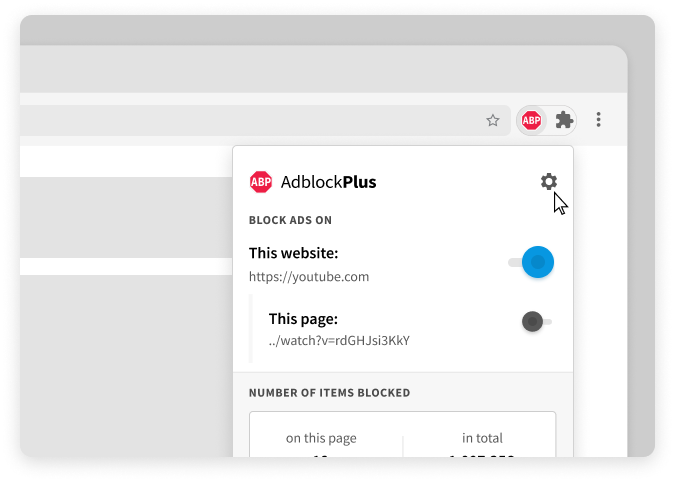
From the Chrome toolbar, click on the Adblock Plus icon to show the menu.
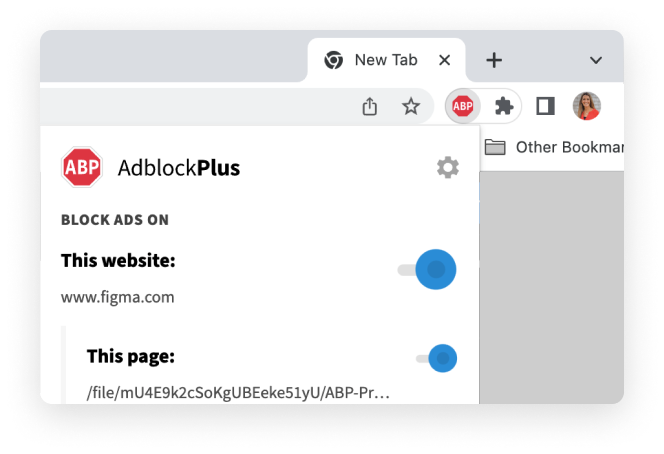
https://eyeo.atlassian.net/wiki/download/attachments/1828487256/69c2d52d5c925.Frame_7.png?version=1&modificationDate=1774376237435&cacheVersion=1&api=v2

Click the gear symbol in the right corner of the Adblock Plus menu to visit the settings page.

https://eyeo.atlassian.net/wiki/download/attachments/1828487256/69c2d52e08623.gear.png?version=1&modificationDate=1774376238124&cacheVersion=1&api=v2

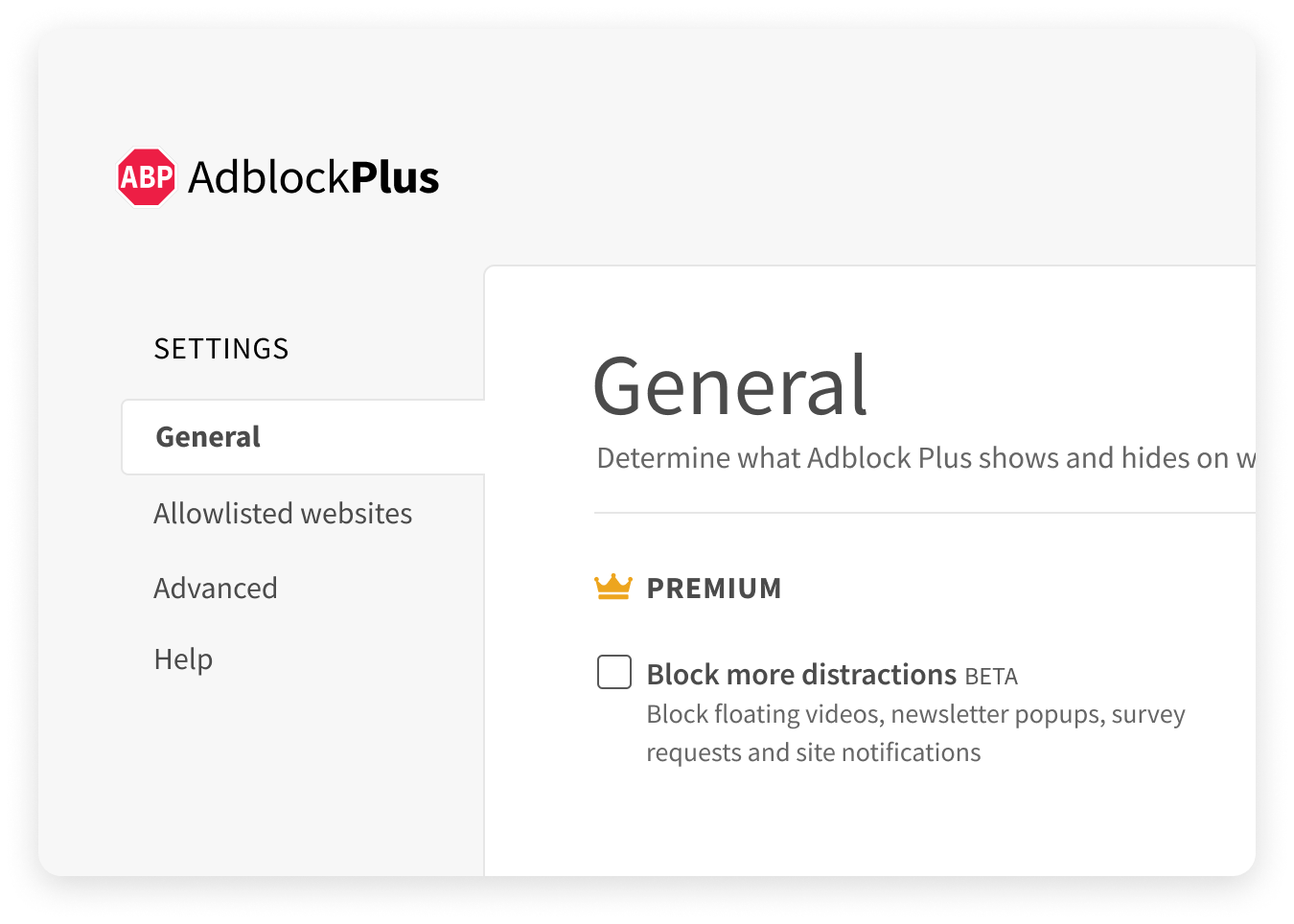
Under the general tab you will see Premium Features you can turn on

https://eyeo.atlassian.net/wiki/download/attachments/1828487256/69c2d52eb5fc6.premium_option_in_general_tab.png?version=1&modificationDate=1774376238819&cacheVersion=1&api=v2


Firefox


Step 1 of 2

Click on the extension icon to access ABP anytime

The Adblock Plus icon now appears on the toolbar to the right.
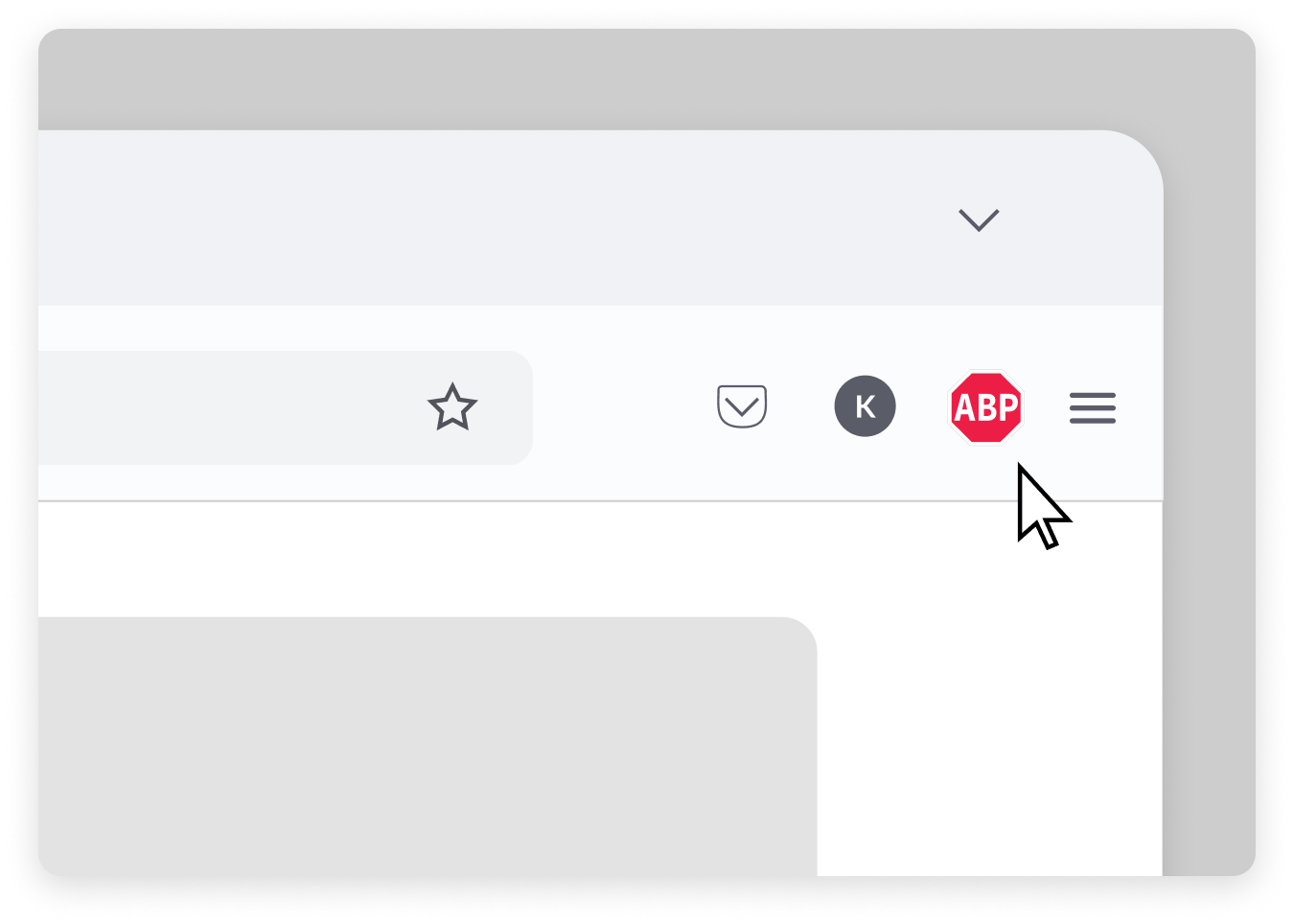
https://eyeo.atlassian.net/wiki/download/attachments/1828487256/69c2d52f7d6ee.12185508919571.png?version=1&modificationDate=1774376239567&cacheVersion=1&api=v2

Step 2 of 2

Turn On Your Premium Features

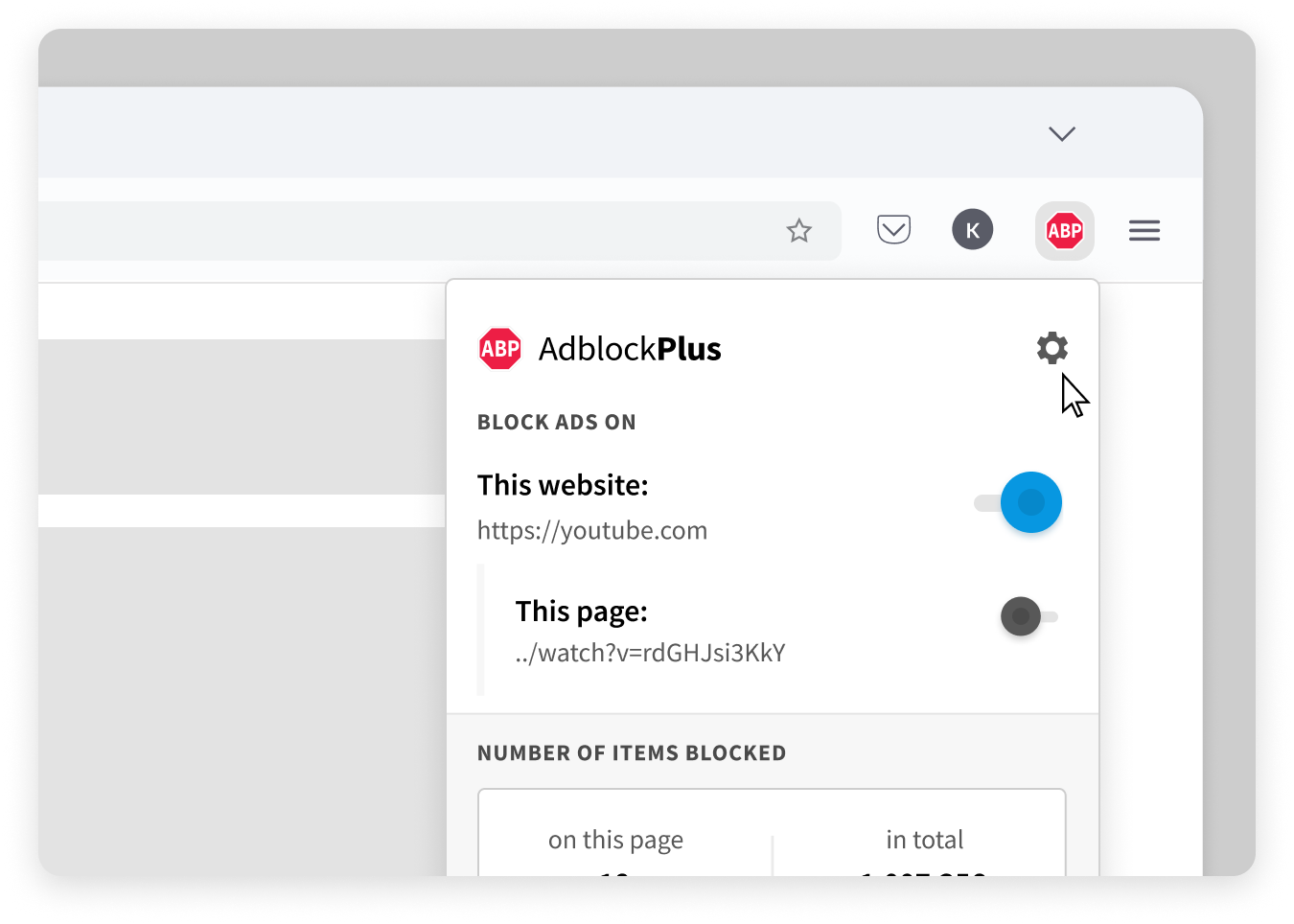
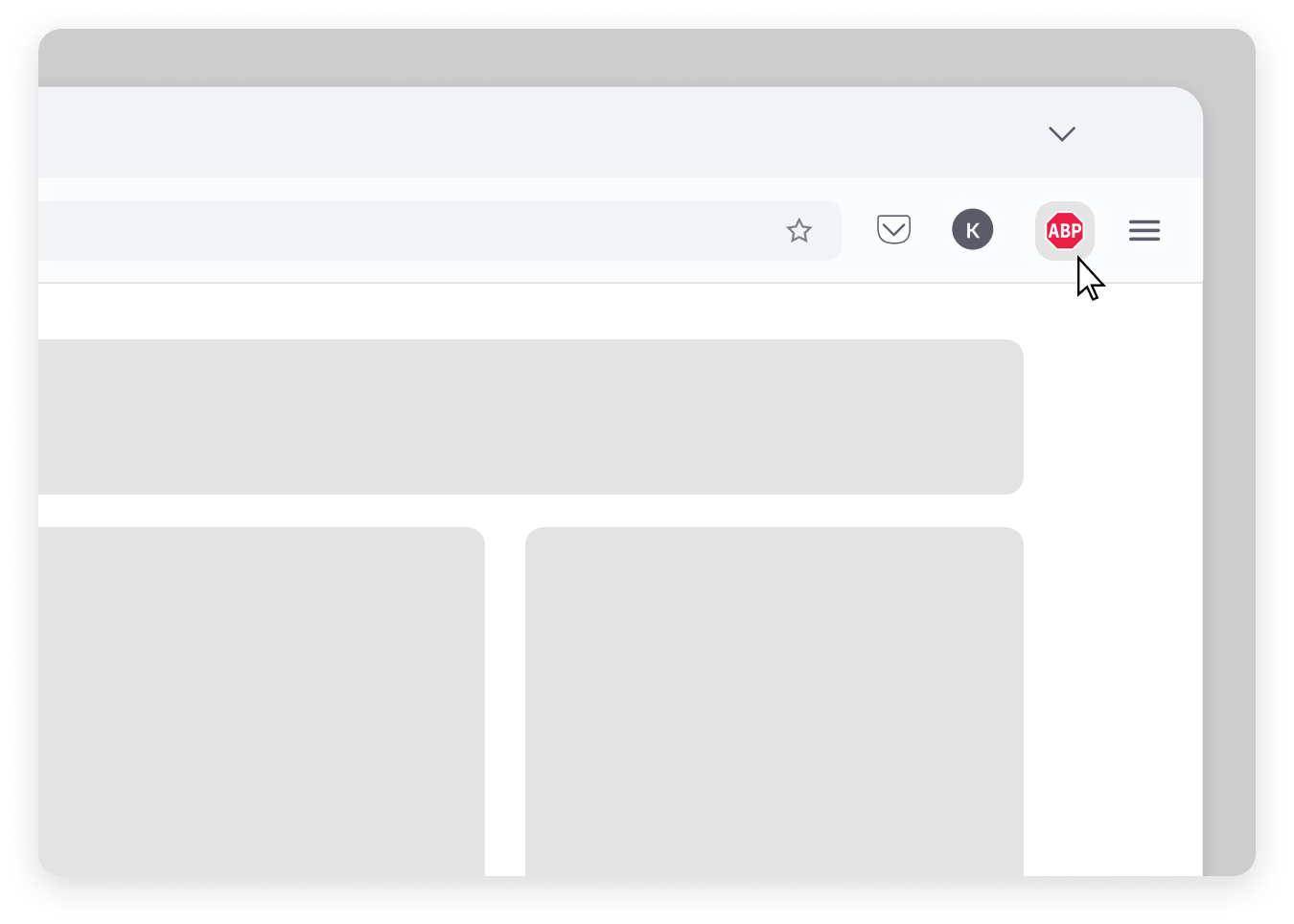
From the Firefox toolbar, click on the Adblock Plus icon to show the menu.
https://eyeo.atlassian.net/wiki/download/attachments/1828487256/69c2d5303107c.12185515575315.png?version=1&modificationDate=1774376240271&cacheVersion=1&api=v2

Click the gear symbol in the right corner of the Adblock Plus menu to visit the settings page.

https://eyeo.atlassian.net/wiki/download/attachments/1828487256/69c2d530d6193.12185508974995.png?version=1&modificationDate=1774376240987&cacheVersion=1&api=v2

Under the general tab you will see Premium Features you can turn on

https://eyeo.atlassian.net/wiki/download/attachments/1828487256/69c2d52eb5fc6.premium_option_in_general_tab.png?version=1&modificationDate=1774376238819&cacheVersion=1&api=v2


Microsoft Edge


Step 1 of 2

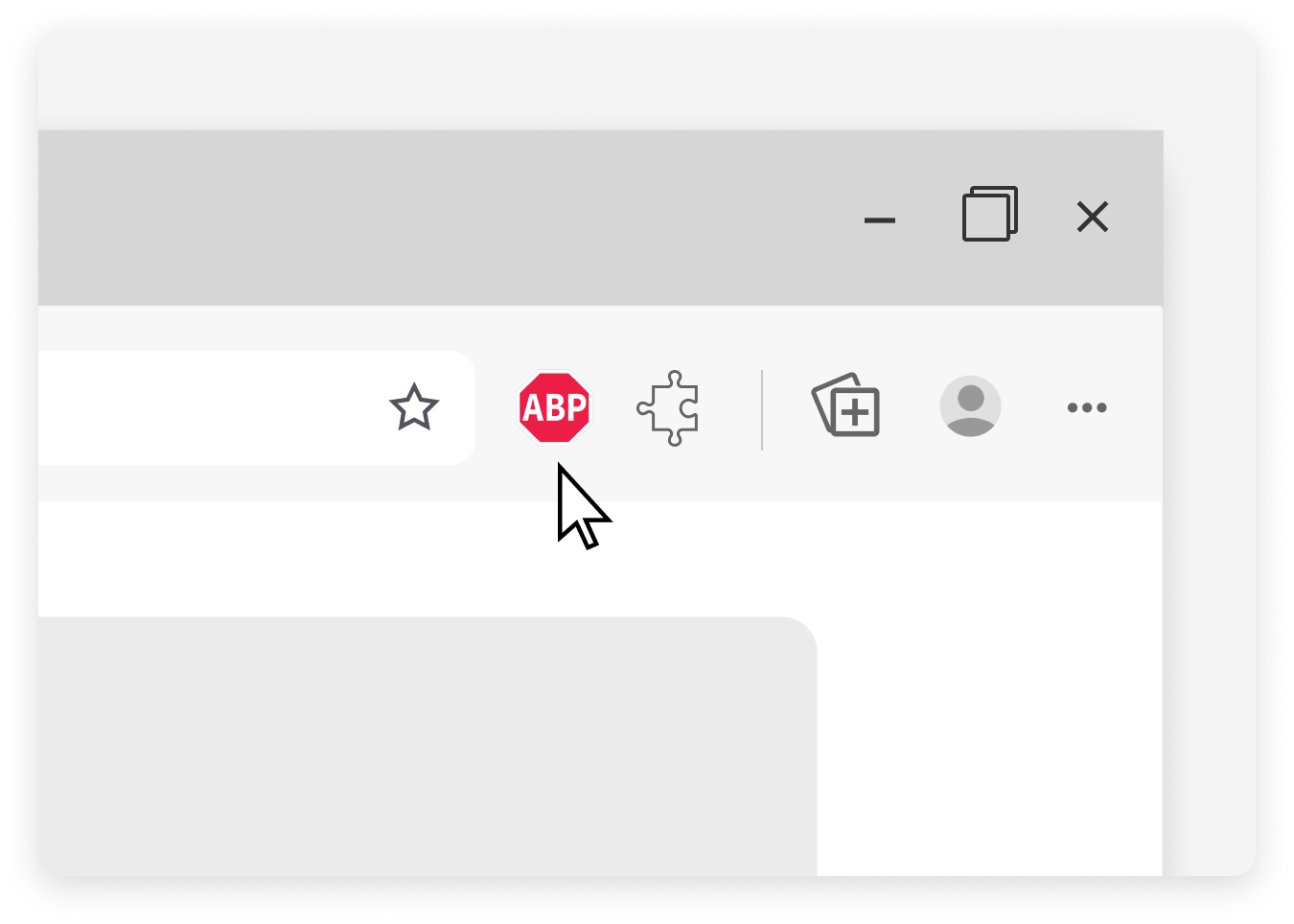
Click on the extension icon to access ABP anytime

The Adblock Plus icon now appears on the toolbar to the right.
https://eyeo.atlassian.net/wiki/download/attachments/1828487256/69c2d531a1c12.12185515453075.png?version=1&modificationDate=1774376241744&cacheVersion=1&api=v2

Step 2 of 2

Turn On Your Premium Features

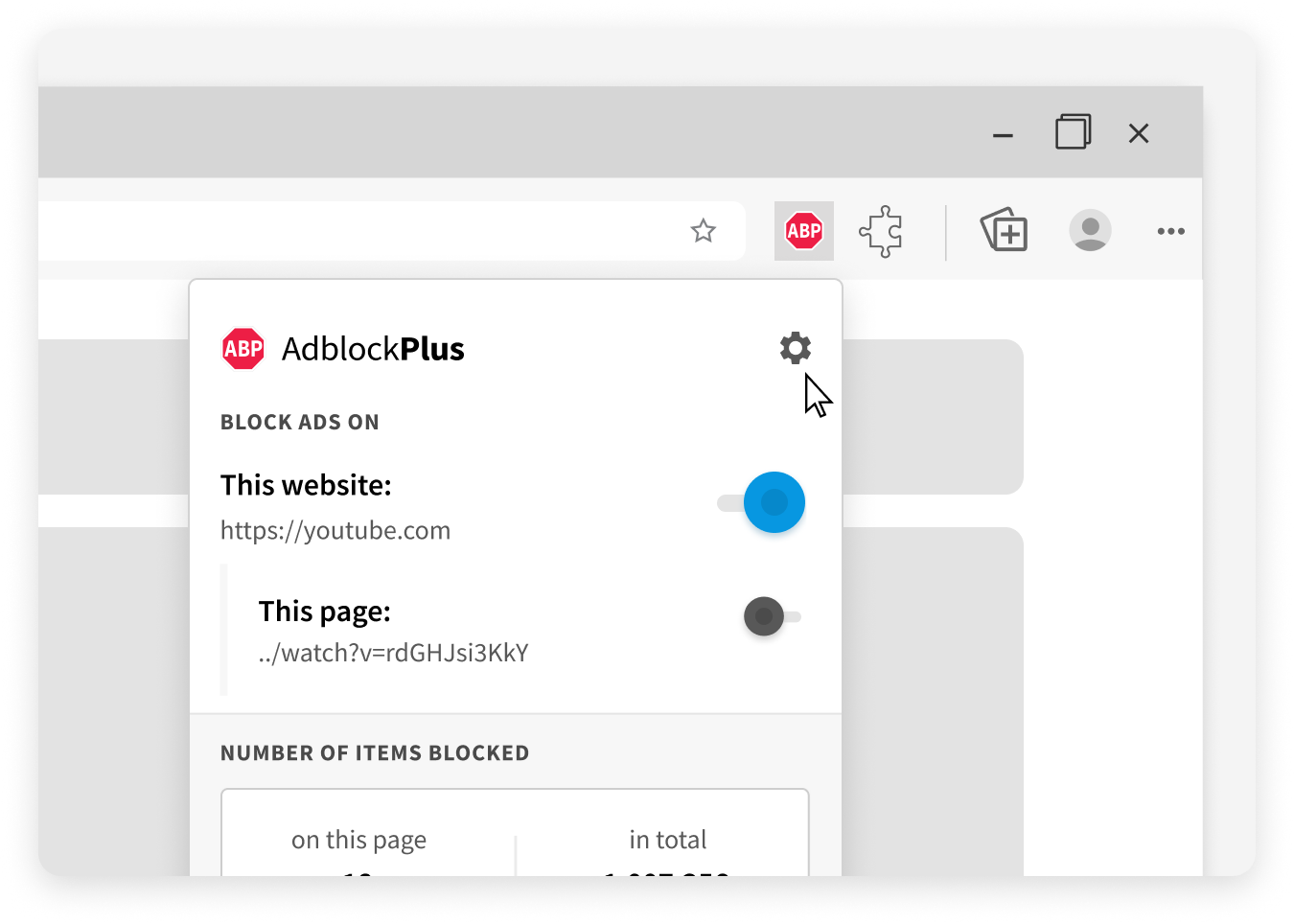
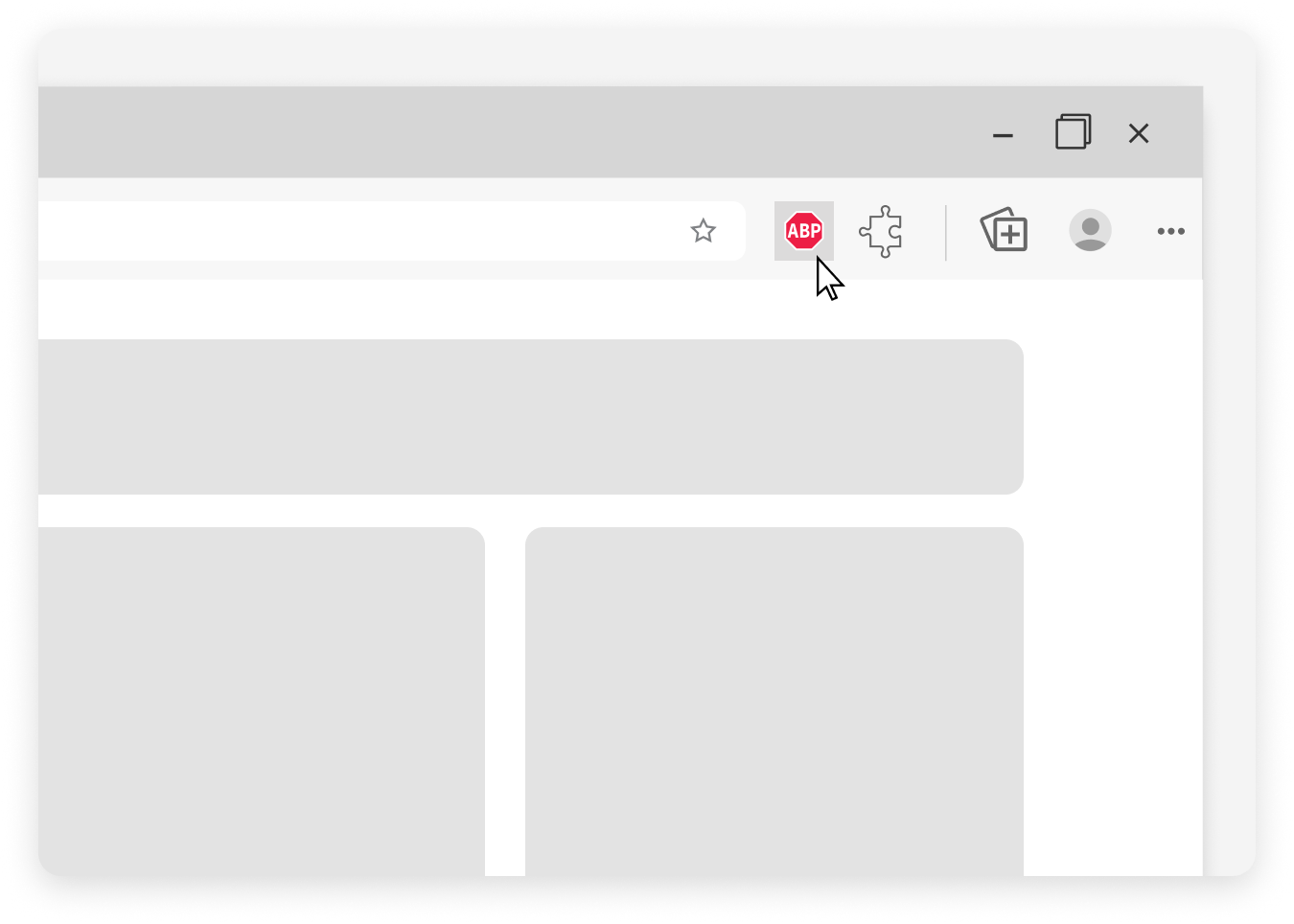
From the Microsoft Edge toolbar, click on the Adblock Plus icon to show the menu.
https://eyeo.atlassian.net/wiki/download/attachments/1828487256/69c2d53263533.12185508857363.png?version=1&modificationDate=1774376242471&cacheVersion=1&api=v2

Click the gear symbol in the right corner of the Adblock Plus menu to visit the settings page.

https://eyeo.atlassian.net/wiki/download/attachments/1828487256/69c2d53311693.12185515517843.png?version=1&modificationDate=1774376243137&cacheVersion=1&api=v2

Under the general tab you will see Premium Features you can turn on

https://eyeo.atlassian.net/wiki/download/attachments/1828487256/69c2d52eb5fc6.premium_option_in_general_tab.png?version=1&modificationDate=1774376238819&cacheVersion=1&api=v2