
When to view or unblock an element
Note
The resource page is only available in Chrome, Firefox, Edge, and Opera. More advanced custom filter writing tutorials can be found here: How to write filters.
Adblock Plus lets you customize on-page actions depending on the page you're viewing. Follow the steps below if you want to
-
view an element you blocked
-
add an exception rule
-
remove a rule you previously set
-
unblock an element you blocked
-
view the rules being used on a page and which filter list they come from
Access the resource page
Important
Before using the steps below, go to the Advanced tab in ABP's Options and enable the option Show 'Adblock Plus' panel in developer tools.
-
Right-click on the web page and select Inspect to open the Developer Tools window.
-
Click the Adblock Plus tab in the Developer Tools window. It might be hidden in the overflow menu (>>).
-
Reload the web page.
-
Use the Show menu to choose what to display. You can show blocked items, allowlisted items, or both. You can also limit the results to show only certain types of resources.
Block item
To block an item, hover over it and click "Block item" when it appears.
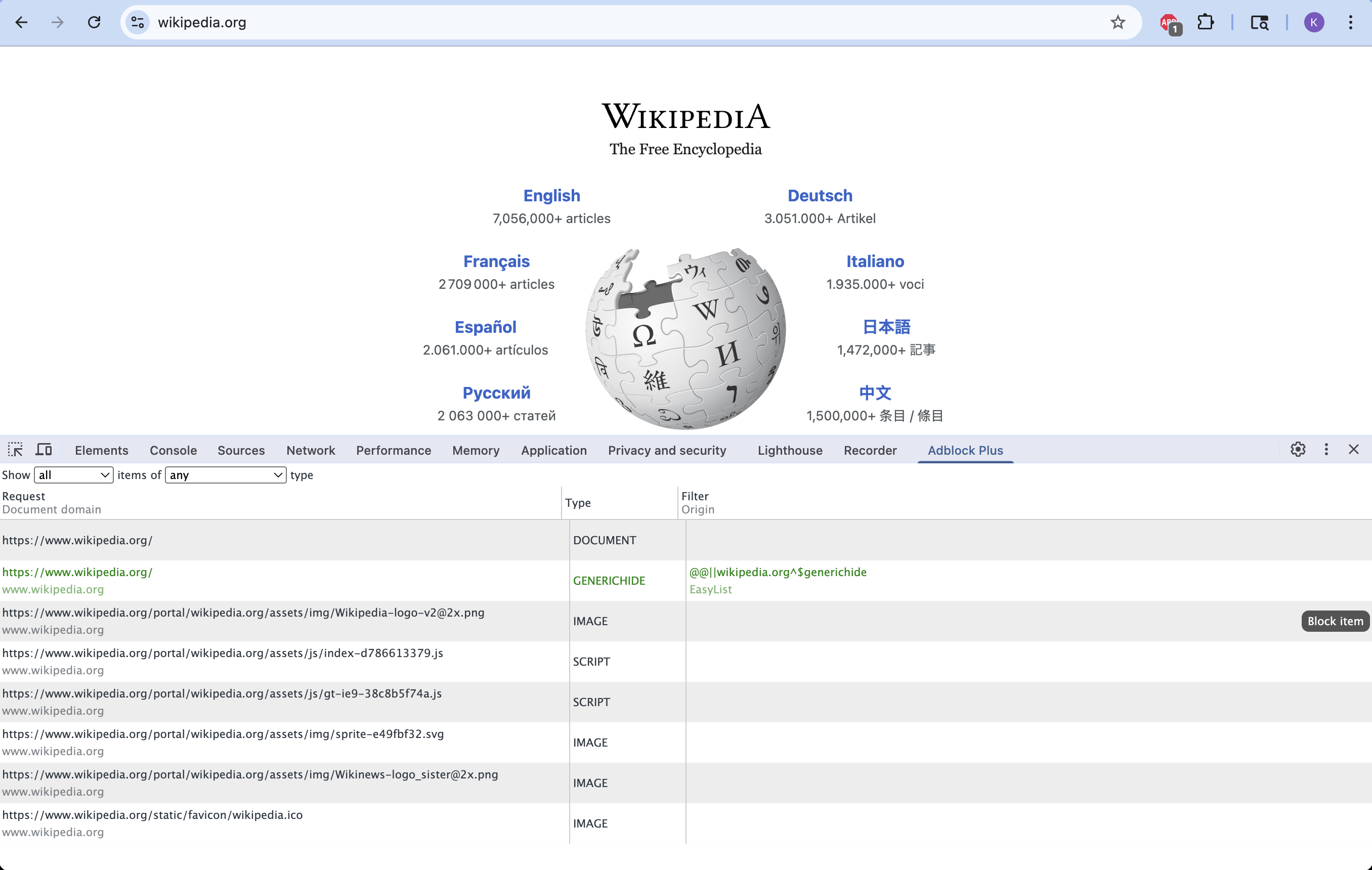
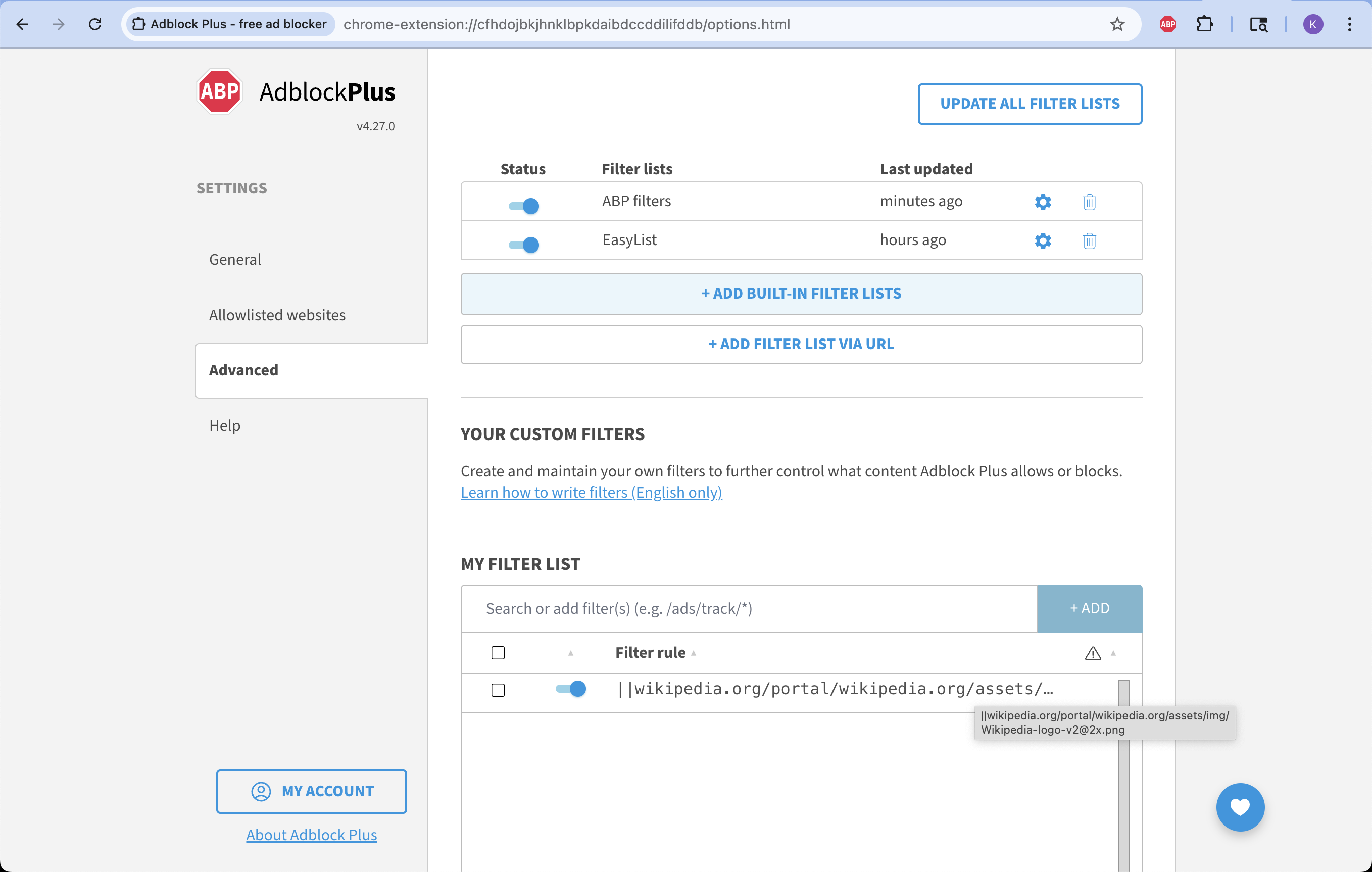
Reload the page to see the change. The rule will also appear under My Filter List on the Advanced tab in ABP's Options.
Remove rule
If you want to undo a rule you've created, hover over the item again and click "Remove rule" when it appears. Reload the page to see the change.
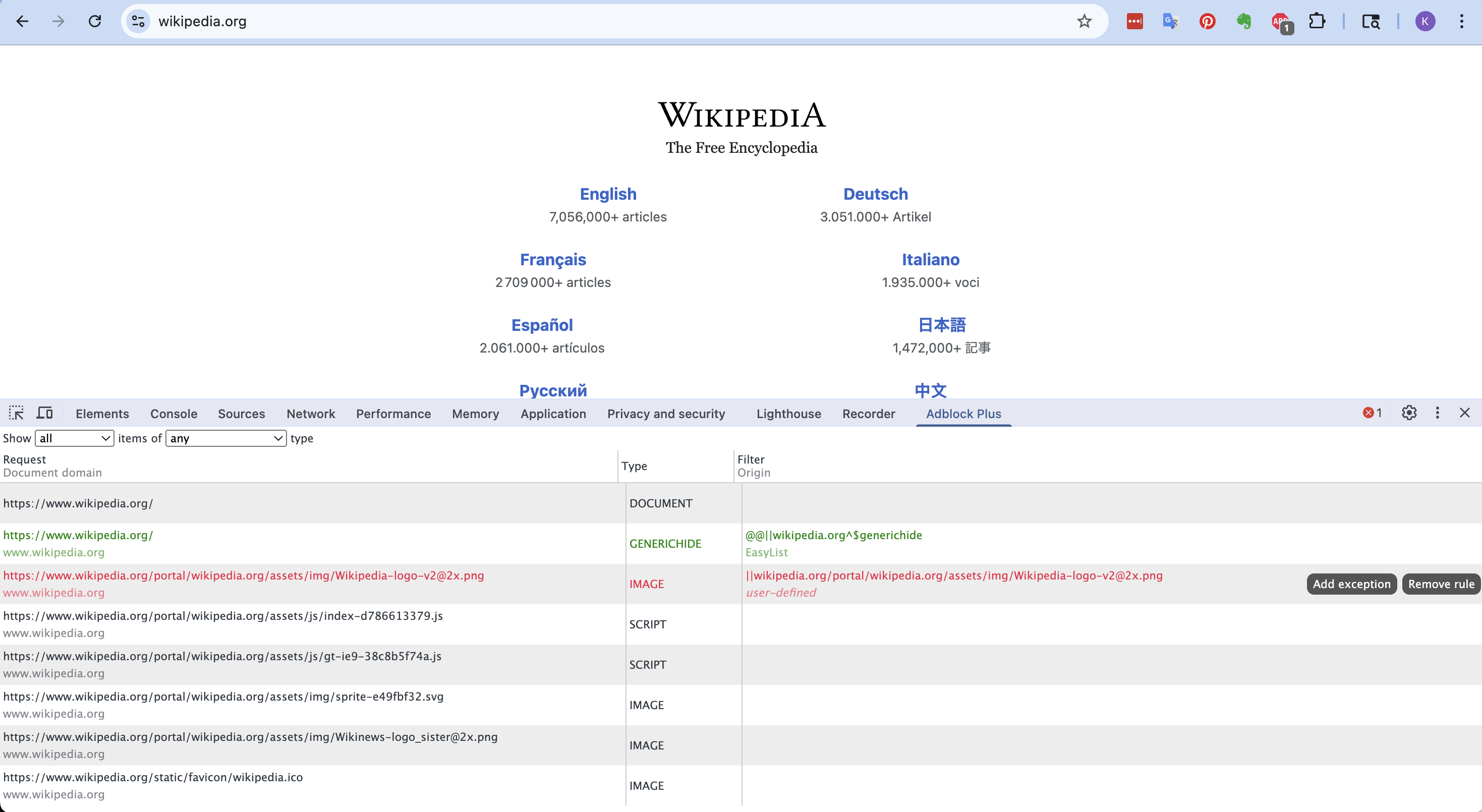
Add exception
Adding an exception rule goes beyond the scope of this basic tutorial. To learn more about exceptions, please see this article: How to write filters.