---
language: "en"
---
# Adblock Plus Help Center

## Browse by Topic

*

  ### [Adblock Plus User Guides](https://help.adblockplus.org/adblock-plus-help-center/adblock-plus-user-guides.md)

  * [Installing and Uninstalling](https://help.adblockplus.org/adblock-plus-help-center/installing-and-uninstalling.md)
  * [Adblock Plus for iOS](https://help.adblockplus.org/adblock-plus-help-center/adblock-plus-for-ios.md)
  * [Blocking and Unblocking Elements](https://help.adblockplus.org/adblock-plus-help-center/blocking-and-unblocking-elements.md)
  * [Manage Filters](https://help.adblockplus.org/adblock-plus-help-center/manage-filters.md)
  * [Adblock Plus Premium](https://help.adblockplus.org/adblock-plus-help-center/adblock-plus-premium.md)
  * [1 more pages](https://help.adblockplus.org/adblock-plus-help-center/adblock-plus-user-guides.md)
*

  ### [Account \& General Information](https://help.adblockplus.org/adblock-plus-help-center/account-general-information.md)

  * [Paying for Adblock Plus](https://help.adblockplus.org/adblock-plus-help-center/paying-for-adblock-plus.md)
  * [About Adblock Plus](https://help.adblockplus.org/adblock-plus-help-center/about-adblock-plus.md)
*

  ### [Troubleshooting](https://help.adblockplus.org/adblock-plus-help-center/troubleshooting.md)

  * [Seeing unblocked ads](https://help.adblockplus.org/adblock-plus-help-center/seeing-unblocked-ads.md)
  * [Other Issues](https://help.adblockplus.org/adblock-plus-help-center/other-issues.md)
  * [Quick Tips](https://help.adblockplus.org/adblock-plus-help-center/quick-tips.md)

---
language: "en"
---
# A site asks me to disable ABP. What to do?

## What is an anti-adblocking notification?

One of the most common questions our team receives is whether there is any workaround when an anti-adblocking notification appears. An anti-adblocking notification is a pop-up that prompts you to disable your ad blocker to access the site.  
![anti popup.png](https://help.adblockplus.org/__attachments/a_2467a2e182786bd4b80d6d3e26ecb9ba8e4cc2902c1ec7aa8ac62a720e356223/anti%20popup.png?cb=488cdf16b5758df838d2a527f89eff72)

Websites have the right to ask their users to disable their ad blocker. And while we believe anti-adblocking walls are an intrusive practice, we also understand why publishers ask users to allow ads to see their content.

Most importantly, although it's technically possible to block those notifications, in some cases it's illegal to do so.

## **What to do when they appear?**

When seeing one of these pop-ups, you can either [disable ABP for the specific page](https://help.adblockplus.org/adblock-plus-help-center/turn-abp-on-off-manually) or [add the website to your allowlist](https://help.adblockplus.org/adblock-plus-help-center/add-a-website-to-the-allowlist).

## **What if the pop-up still shows after pausing ABP?**

If you have followed the steps above and the anti-adblocking pop-up is still appearing on your screen, it is most likely due to another extension or setting. Please see the suggestions here: [Why am I still asked to turn off my ad blocker after allowlisting?](https://help.adblockplus.org/adblock-plus-help-center/why-am-i-still-asked-to-turn-off-my-ad-blocker-after-allowing-ads)

---
language: "en"
---
# About Adblock Plus

---
language: "en"
---
# About Adblock Plus Permissions

## What permissions does Adblock Plus need?

The permissions you see are provided by the browser and are required for Adblock Plus to block ads effectively. We only request the permissions that are necessary for ad blocking---nothing more.

Ad blockers work in two ways:

1. **Blocking requests**: Preventing the browser from downloading ads from the servers that host them.

2. **Hiding ads**: Removing or hiding ads that can't be blocked at the request level.

To make this possible, Adblock Plus needs permission to:

* **Access every page you visit**: This ensures that ads can be blocked or hidden no matter which site you're on. This means Adblock Plus can see the URL of the pages you open.

* **Read page content**: This allows the extension to identify and hide any ads that weren't blocked before the page loaded. This means Adblock Plus can technically see things like forms or activity on that tab.

**Important:** Adblock Plus does **not** track your browsing history, record what you type in forms (including passwords), or alter anything you submit on a website.

To learn more about the data we collect and how it's processed, check out our [Privacy Policy F.A.Q's](https://help.adblockplus.org/adblock-plus-help-center/privacy-policy-f-a-q-s).

---
language: "en"
---
# Account \& General Information

---
language: "en"
---
# Adblock Plus for iOS

---
language: "en"
---
# Adblock Plus Premium

---
language: "en"
---
# Adblock Plus User Guides

---
language: "en"
---
# Add a language

You can enhance Adblock Plus by changing the language that you normally browse websites in. Follow the instructions below for your browser.  
You should avoid adding too many languages to Adblock Plus. Adding too many languages slows down the ad blocker and, therefore, your browsing.
Chrome, Firefox, Edge, Opera (desktop extension)  
1. From the Chrome toolbar, click the **Adblock Plus** icon and then click the **gear** icon in the upper-right corner.

💡  
[What if I don't see the Adblock Plus icon?](https://help.adblockplus.org/adblock-plus-help-center/hide-or-show-the-adblock-plus-icon-on-your-browser-s-toolbar.md)

2. From the **General** tab, scroll to the **Language Filter Lists** section.

3. You can now:

   * Click **Change** and selecting a new language from the list to change your default language.

   * Click **Add a language filter list** and select a language from the list to add another language.

4. Close the tab.

Samsung Browser  
1. Open the ABP for Samsung Browser App

2. Tap **Language**

3. Check box next to your preferred language

4. Tap the back button to refresh

5. Close App

---
language: "en"
---
# Add a new filter list

## Find a filter list

Adblock Plus requires filter lists to block ads. The following filter lists come pre-installed with Adblock Plus:

* Acceptable Ads

* EasyList (+ bundled language filter list - depending on your browser's language setting)

* ABP Anti-circumvention filter list

You can choose additional lists that match your browsing habits. You can find a list of our recommendations here: [View actively maintained filter lists](https://adblockplus.org/en/subscriptions).  
**Note**

As a recommendation, you should avoid adding too many filter lists to Adblock Plus. Adding too many filter lists slows down the ad blocker and, therefore, your browsing.

## Add a filter list

💡  
**Tip**

Don't see the Adblock Plus icon? Try these steps: [Show the Adblock Plus icon on your browser's toolbar](https://help.adblockplus.org/adblock-plus-help-center/hide-or-show-the-adblock-plus-icon-on-your-browser-s-toolbar).

Choose your browser below to learn how to add a filter list.
Chrome, Firefox, Edge, Opera  
1. From the browser toolbar, click the **Adblock Plus** icon and then click the **gear** icon on the pop-up menu.

2. Select the **Advanced** tab and scroll to the **Filter Lists** section.

3. Click **Add a new filter list via URL** .

   The **Add a filter list via URL** window opens.

4. Enter the filter list URL in the **Filter list URL** field.

5. Click **Add a filter list** .

   The add is successful if *Just now* appears next to the list.

6. Close the tab.

Samsung Browser  
1. Open the Adblock Plus for Samsung Browser app.

2. Tap **More blocking options**.

3. Select the filter list you want to subscribe to.

4. Tap the back button to refresh.

5. Close the app.

---
language: "en"
---
# Add a website to the allowlist

## What is an allowlist?

In general, an allowlist is a list of items approved to receive special privileges. You can add website URLs to an allowlist to view ads on websites that you want to support.  
Adblock Plus uses smart allowlisting. When you add a website to your allowlist, it will remain allowlisted for seven days. If you visit the site again in those seven days, the allowlist will renew for another seven days. If you don't visit the site again within that time, the site will be removed from your allowlist.

## Add a site to my allowlist

Chrome, Edge, Opera, Firefox  
1. From the browser toolbar, click the **Adblock Plus** icon.

💡  
[What if I don't see the Adblock Plus icon?](https://help.adblockplus.org/adblock-plus-help-center/hide-or-show-the-adblock-plus-icon-on-your-browser-s-toolbar)

2. On the pop-up menu that appears, click the **gear** icon.

3. On ABP's Settings page, click the **Allowlisted websites** tab.

4. Enter the website URL and click **Add website**.

![Screenshot 2025-02-04 at 11.09.41 AM.png](https://help.adblockplus.org/__attachments/a_a1b6725aabc15075c1443f30981e1196b6a5235a1d984b869369d823cb35f28d/Screenshot%202025-02-04%20at%2011.09.41%E2%80%AFAM.png?cb=c62386e97c665859c44d6ccca44a043d)

Safari (iOS - iPhone/iPad)  
1. Open the Adblock Plus app on your iOS device.

2. Tap **Exceptions**.

3. Tap **Allowlist**.

4. Tap the **ADD**button.

5. Enter the website URL and tap **Add**.

Safari (macOS)  
1. From the Safari toolbar, click the **Adblock Plus** icon and click **Open Adblock Plus**.

💡  
[What if I don't see the Adblock Plus icon?](https://help.adblockplus.org/adblock-plus-help-center/hide-or-show-the-adblock-plus-icon-on-your-browser-s-toolbar)

2. On the Settings window that opens, click the **Allowlist** tab.

3. Enter the website URL and click **Add Website**.

Samsung Browser (Android)  
1. Open the ABP for Samsung Browser app.

2. Tap **Add websites to the allowlist**.

3. Tap the **plus sign** in the bottom right corner.

4. In the provided space enter the URL and tap **OK**.

💡  
Looking to remove a website from your allowlist? [See this article](https://help.adblockplus.org/adblock-plus-help-center/remove-a-filter-list).

---
language: "en"
---
# Add or remove a custom filter

## When to use custom filters

Adblock Plus comes with a set of standard, pre-made filter lists. If you want more control over what you see and what you don't see when you browse the web, you can [manually block an element](https://help.adblockplus.org/adblock-plus-help-center/block-a-specific-element)or [write your own filters](https://help.adblockplus.org/adblock-plus-help-center/how-to-write-filters).  
**Note**

Only our desktop extensions for Chrome, Firefox, Edge, and Opera support custom filters.

## Add a custom filter

1. Click the **Adblock Plus toolbar icon** . [What if I don't see the Adblock Plus icon?](https://help.adblockplus.org/adblock-plus-help-center/hide-or-show-the-adblock-plus-icon-on-your-browser-s-toolbar)

2. Click the **gear**icon.

3. On the page that opens, go to the **Advanced** tab.

4. Under **MY FILTER LIST**, paste your custom filter rule(s) into the box.

5. Click **Add**.

6. Refresh any tabs or windows that are already open to ensure the change appears.

## Remove a custom filter

1. Click the **Adblock Plus toolbar icon** . [What if I don't see the Adblock Plus icon?](https://help.adblockplus.org/adblock-plus-help-center/hide-or-show-the-adblock-plus-icon-on-your-browser-s-toolbar)

2. Click the **gear**icon.

3. On the page that opens, go to the **Advanced** tab.

4. Under **MY FILTER LIST**, select the custom filter rule(s) you'd like to remove.

5. Click **Delete**.

6. Refresh any tabs or windows that are already open to ensure the change appears.

---
language: "en"
---
# Ads appearing on YouTube

We're constantly working hard to prevent ads from appearing on YouTube. If you're suddenly seeing ads on YouTube, use the information below to rule out some of the most common reasons why ads might appear.

## Do you only see ads on YouTube, or on other sites too?

If you're seeing ads on YouTube *and* on other sites, please first try the steps in this article: [What to do if you are seeing ads](https://help.adblockplus.org/adblock-plus-help-center/what-to-do-if-you-are-seeing-ads).

If you've checked and you *only* see ads on YouTube, but not on other sites, continue with the list below for more insight into why they might be appearing and what you can do.

## Do you see a brief ad or a full-length ad?

If you're using the desktop extension, you may see a variety of different behaviors, such as a temporary black screen or a short ad, which may, in some cases, include a skip button. These are related to our efforts to reduce the length of ads if we aren't able to block them completely.

A good way to check the length of the ad is to pause ABP and see if the ads are longer. If they are, then that means ABP is reducing the ad as much as possible.

## Signed into YouTube? Try signing out.

We've found that signing out of your YouTube account prevents YouTube from circumventing our blocks. Try signing out and see if it helps.

## Have you allowed ads?

It seems like an obvious solution, but it happens more often than you'd think! Check to make sure you didn't [allowlist YouTube](https://help.adblockplus.org/adblock-plus-help-center/add-a-website-to-the-allowlist).

## Are you using a mobile device?

YouTube uses a technology that prevents *consistent* ad blocking in videos on mobile devices. This only impacts YouTube. You can test if some ads are being blocked by pausing ABP and see if you see more ads with it disabled than enabled. While we aren't able to consistently block ads on YouTube, the majority of ads should be blocked on most other sites you visit.

## Using Safari? Try a different browser.

If you're using Safari, it's more likely you will see ads as Apple limits the type of ad blocking we can provide. You may want to try using one of our desktop extensions for Chrome, Firefox, Edge, or Opera, where we're not as limited by what we can block.

## Check for incompatible extensions.

1. Disable **all** your extensions except for ABP: [How to check your installed extensions](https://help.adblockplus.org/adblock-plus-help-center/check-which-browser-extensions-you-have-installed).

2. Reload the page and try to watch the video again.

If you don't see any ads, then one of the extensions you disabled was somehow interfering with ABP. Re-enable each extension one at a time, making sure to refresh YouTube each time to ensure it recognizes the change, until you find the one that makes ads appear. If you need to use one of these extensions, notify the extension's developers so they can fix the issue that's causing the interference.

## Still seeing ads?

If none of the steps above help, please [let us know](https://help.adblockplus.org/hc/en-us/requests/new) so we can continue to assist you.

---
language: "en"
---
# All about Adblock Plus Premium

Adblock Plus Premium takes your online experience and customization to the next level with additional features that go beyond ad blocking.

## What features are included?

### Block cookie consent pop-ups

If you're tired of seeing cookie notifications on websites you visit, enabling this feature will prevent them from appearing.

**Learn more:** [Block cookie consent pop-ups with Adblock Plus Premium](https://help.adblockplus.org/adblock-plus-help-center/block-cookie-consent-pop-ups-with-adblock-plus-premium).

### Block distractions

If you're looking for a more focused online experience, Premium lets you block many annoying distractions that aren't ads.

**Learn more:** [Block more distractions with Adblock Plus Premium](https://help.adblockplus.org/adblock-plus-help-center/block-more-distractions-with-adblock-plus-premium).

### Block ads in apps on iOS New

We're excited to announce our latest Premium feature: blocking ads in apps on iPhones and iPads!

**Learn more:** [Get started with Adblock Plus for iOS](https://help.adblockplus.org/adblock-plus-help-center/get-started-with-adblock-plus-ios-app)

## How much does it cost?

You can find our monthly and yearly rates on our [enrollment page](https://accounts.adblockplus.org/premium).

## How do I get started?

Once you've chosen a plan, head over to our [activation article](https://help.adblockplus.org/adblock-plus-help-center/unlock-adblock-plus-premium) for a quick walkthrough on how to link your account and start using Premium features.

## Do I have to pay for each device?

You can unlock Adblock Plus Premium in as many browsers, profiles, and computers as you'd like; there's no need to make multiple purchases. For steps on enabling it on supported devices, see this article: [Unlock Adblock Plus Premium](https://help.adblockplus.org/adblock-plus-help-center/unlock-adblock-plus-premium).

## What devices can I use with Premium?

Premium is available on the ABP iOS app as well as ABP desktop extensions for Chrome, Firefox, Edge, and Opera.

While our ABP for Safari Mac app and other [mobile apps](https://help.adblockplus.org/adblock-plus-help-center/get-started-with-ad-blocking-on-mobile) provide ad blocking for free, they do not currently support the premium features. We hope to provide this option in the future!

## Have more questions about Premium?

For other questions about Premium, please see these articles: [Adblock Plus Premium How-to's](https://help.adblockplus.org/adblock-plus-help-center/adblock-plus-premium).

---
language: "en"
---
# Block a specific element

**Important**

If you are seeing ads with ABP installed, first check that your settings are correct, or the feature may not work correctly: [What to do if you are seeing ads](https://help.adblockplus.org/adblock-plus-help-center/what-to-do-if-you-are-seeing-ads).

## When do I use the Block Element tool?

If your settings are correct but you're still seeing something you want to block, you can manually remove it with the Block Element feature. And it's not just ads - you can also block images, scripts, comment sections, and more by following the steps below.  
**Note**

The block element feature is only available in ABP on desktop extensions for Chrome, Edge, Opera, and Firefox.

## Blocking from the ABP toolbar icon

1. Open the webpage with the element you want to block.

2. From the toolbar, click the **Adblock Plus** icon and select **Block element**.

💡  
**Tip**

[What if I don't see the Adblock Plus icon?](https://help.adblockplus.org/hc/en-us/articles/4402461029779-How-to-hide-show-icon-#:~:text=Find%20Adblock%20Plus.,Select%20Pin%20to%20Toolbar.&text=Note%3A%20If%20you%20use%20Private,Private%20Windows%22%20and%20select%20Allow.)

3. Hover your mouse over the element you want to block. The element area turns red.

4. Click the element.

5. The Block element window opens. Here you can **Preview** blocking the selected element, or **Unselect** and choose a different element. To exit the window, select **Cancel**.

6. To block the element, select **Block**. The element is now blocked.

## Blocking from the context menu

**Important**

This option will only appear in the context menu when right-clicking on media elements that can be blocked, such as slideshows, audios, images, and videos.

1. On your**ABP advanced settings** , make sure you havethe*Show 'Block element' right-click menu item* turned ON.

2. **Right-click** the element you want to block.

3. From the drop-down context menu, select **Block Element.**

4. In the dialogue box that appears, confirm the change by clicking **Block**.

💡  
**Tip**

[Learn how to view a blocked item or unblock an element](https://help.adblockplus.org/adblock-plus-help-center/view-a-blocked-element-or-unblock-an-element)

---
language: "en"
---
# Block additional tracking

## Why block additional tracking?

Entities may track your activity across the websites that you visit. To prevent this, turn on **Block additional tracking**.  
**Note**

This is only available on desktop for Chrome, Firefox, Edge, and Opera.

## Enable this feature

To enable this feature, use these steps:

1. Click the **Adblock Plus** icon on your browser's toolbar.

💡  
**Tip**

[What if I don't see the Adblock Plus icon?](https://help.adblockplus.org/adblock-plus-help-center/hide-or-show-the-adblock-plus-icon-on-your-browser-s-toolbar)

2. Click the **gear** icon on the pop-up menu.

3. On the **General** tab, under **Free Features** , select the check box labeled **Block additional tracking**.

4. Close the tab.

---
language: "en"
---
# Block all ads

**Note:** If you choose to block all ads, Adblock Plus will block annoying ads *and* ads that are considered nonintrusive (Acceptable Ads). Website owners and content creators who abide by the Acceptable Ads criteria will lose ad revenue. To learn more about Acceptable Ads, visit the [Acceptable Ads webpage](https://acceptableads.com/).

See how to block all ads on each browser below.
Chrome  
1. From the Chrome toolbar, click the **Adblock Plus** icon and then click the **gear** icon in the upper-right corner. The *Adblock Plus Settings* tab opens.

💡  
**Tip:** Don't see the Adblock Plus icon? Try these steps: [Show the Adblock Plus icon on your browser's toolbar](https://help.adblockplus.org/adblock-plus-help-center/hide-or-show-the-adblock-plus-icon-on-your-browser-s-toolbar).

2. From the *General* tab, scroll to the *Acceptable Ads* section.

3. Clear the check box labeled **Allow Acceptable Ads**.

4. Close the tab.

Firefox  
1. From the Firefox toolbar, click the **Adblock Plus** icon and then click the **gear** icon in the upper-right corner. The *Adblock Plus Settings* tab opens.

💡  
**Tip:** Don't see the Adblock Plus icon? Try these steps: [Show the Adblock Plus icon on your browser's toolbar](https://help.adblockplus.org/adblock-plus-help-center/hide-or-show-the-adblock-plus-icon-on-your-browser-s-toolbar).

2. From the *General* tab, scroll to the *Acceptable Ads* section.

3. Clear the check box labeled **Allow Acceptable Ads**.

4. Close the tab.

iOS Safari  
1. Open the Adblock Plus for iOS app.

2. Tap the **Tools** icon.

3. Tap **Acceptable Ads**.

4. Turn off **Allow some nonintrusive ads**.

5. Close the app.

macOS Safari  
1. From the Safari toolbar, click the **Adblock Plus** icon and select **Open Adblock Plus** .

   The *Adblock Plus Settings* window opens.

2. Clear the check box labeled **Allow Acceptable Ads**.

3. Close the tab.

Microsoft Edge  
1. From the Edge toolbar, click the **Adblock Plus** icon and then click the **gear** icon in the upper-right corner. The *Adblock Plus Settings* tab opens.

💡  
**Tip:** Don't see the Adblock Plus icon? Try these steps: [Show the Adblock Plus icon on your browser's toolbar](https://help.adblockplus.org/adblock-plus-help-center/hide-or-show-the-adblock-plus-icon-on-your-browser-s-toolbar).

2. From the *General* tab, scroll to the *Acceptable Ads* section.

3. Clear the check box labeled **Allow Acceptable Ads**.

4. Close the tab.

Opera  
1. From the Opera toolbar, click the **Adblock Plus** icon and then click the **gear** icon in the upper-right corner. The *Adblock Plus Settings* tab opens.

💡  
**Tip:** Don't see the Adblock Plus icon? Try these steps: [Show the Adblock Plus icon on your browser's toolbar](https://help.adblockplus.org/adblock-plus-help-center/hide-or-show-the-adblock-plus-icon-on-your-browser-s-toolbar).

2. From the *General* tab, scroll to the *Acceptable Ads* section.

3. Clear the check box labeled **Allow Acceptable Ads**.

4. Close the tab.

Samsung Browser  
1. Open the Adblock Plus for Samsung Browser app.

2. Tap **Allow some nonintrusive advertising**.

3. Select **No, I'd like to disable Acceptable Ads.**

4. Close App.

Yandex.Browser  
1. From the Yandex Browser toolbar, click the **Adblock Plus** icon and then click the **gear** icon in the upper-right corner. The *Adblock Plus Settings* tab opens.

💡  
**Tip:** Don't see the Adblock Plus icon? Try these steps: [Show the Adblock Plus icon on your browser's toolbar](https://help.adblockplus.org/adblock-plus-help-center/hide-or-show-the-adblock-plus-icon-on-your-browser-s-toolbar).

2. From the *General* tab, scroll to the Acceptable Ads section.

3. Clear the check box labeled **Allow Acceptable Ads**.

4. Tap the back button to refresh.

5. Close the app.

---
language: "en"
---
# Block cookie consent pop-ups with Adblock Plus Premium

The Premium upgrade is available on Adblock Plus for Chrome, Edge, Firefox, and Opera browsers, as well as the Adblock Plus for iOS app. Learn more: [All about Adblock Plus Premium](https://help.adblockplus.org/adblock-plus-help-center/all-about-adblock-plus-premium).

## Why block cookie notices?

Many users have reached out to us over the years about distracting cookie pop-ups like this:  
![cookie_policy.png](https://help.adblockplus.org/__attachments/a_87c1ac52e09b0ac31879d8aae1d75eaf50bddb0754d7864c5bff3cd31ad83cd5/cookie_policy.png?cb=2e40e877acef7384bceb6d533fc85efb)

Although cookies have become an important part of modern browsers, we know these banners interrupt your browsing and can be an annoyance. With the block cookie consents feature, you'll be able to browse any website without ever seeing these annoying cookie notifications.

## Does this mean I'm consenting to cookies?

Blocking the cookie consent notification means the pop-up will be hidden. We'll reject any cookies we can on your behalf, and only accept those that are required to access the website. To learn more about cookies and how they work, check out [our blog post](https://blog.adblockplus.org/blog/block-cookie-consent-pop-ups-with-adblock-plus-premium).

You can opt out of cookie blocking at any time by disabling the feature.

## Enable **Block cookie consent pop-ups**

Haven't yet purchased Premium? [Get Adblock Plus Premium](https://accounts.adblockplus.org/premium?s=ipmnt&s=hdhl).

If you've already paid, make sure you've [unlocked your Premium upgrade](https://help.adblockplus.org/adblock-plus-help-center/unlock-adblock-plus-premium).

1. Click on the **ABP** icon on your browser's toolbar. If you don't see the icon, be sure to [pin it](https://help.adblockplus.org/adblock-plus-help-center/hide-or-show-the-adblock-plus-icon-on-your-browser-s-toolbar).

2. Click the **gear**icon.

3. On the **General** tab, select **Block cookie consent pop-ups**.

4. Click **Ok, got it**on the dialogue box that appears.

![Screenshot 2023-10-03 at 11.39.38 AM.png](https://help.adblockplus.org/__attachments/a_fe3474319b513d4077122ed5ea5286a5e248dbcffb154797bac06b2b5ee1c8b9/Screenshot%202023-10-03%20at%2011.39.38%E2%80%AFAM.png?cb=124f70b226943f568f57c98b70370ce1)

---
language: "en"
---
# Block more distractions with Adblock Plus Premium

## What distractions are blocked?

Some of our most frequent complaints are about floating videos and site notifications (those little pop-ups in the corner of your screen that look like ads). And we've heard you! With this feature enabled, you'll no longer see floating videos and other annoyances, such as survey requests and newsletter pop-ups. It's just one more step toward putting you in full control of your online experience!

## Enable the feature

**Note**

Haven't yet purchased Premium? [Get Adblock Plus Premium](https://accounts.adblockplus.org/premium?s=ipmnt&s=hdhl).

If you've already paid, make sure you've [unlocked your Premium upgrade](https://help.adblockplus.org/adblock-plus-help-center/unlock-adblock-plus-premium).

1. Click on the **ABP** icon on your browser's toolbar. If you don't see it, be sure to [pin it](https://help.adblockplus.org/adblock-plus-help-center/hide-or-show-the-adblock-plus-icon-on-your-browser-s-toolbar).

2. Click the **gear**icon.

3. On the **General** tab, select **Block more distractions**.

4. Click **Ok, got it**on the dialogue box that appears.

![block distractions.png](https://help.adblockplus.org/__attachments/a_217c44ab9101ce3575223c4a763cc97c5eb94ce0719ceeb91585b8cfbf3d1262/block%20distractions.png?cb=6732ab2886695bf9243fcdac9f59c267)  
**Note**

The Premium upgrade is available on desktop for Chrome, Edge, Firefox, and Opera browsers. It is also available on mobile for iOS. Learn more: [All about Adblock Plus Premium](https://help.adblockplus.org/adblock-plus-help-center/all-about-adblock-plus-premium).

---
language: "en"
---
# Block social media icons tracking

Social media icons track your online browsing activities. Even if you never click one of these icons, a profile based on your browsing habits can be created and sent to various social network servers. Use Adblock Plus to stop social media sites from tracking your online activity. This means all social media icons will be hidden.

Learn how to do this depending on your browser:
Chrome  
1. From the Chrome toolbar, click the **Adblock Plus** icon and then click the **gear** icon in the upper-right corner. The *Adblock Plus Settings* tab opens.

💡  
**Tip:** Don't see the Adblock Plus icon? Try these steps: [Show the Adblock Plus icon on your browser's toolbar](https://help.adblockplus.org/adblock-plus-help-center/hide-or-show-the-adblock-plus-icon-on-your-browser-s-toolbar).

2. From the *General* tab, locate the *Privacy \& Security* section.

3. Select the check box labeled **Block social media icons tracking**.

4. Close the tab.

Firefox  
1. From the Firefox toolbar, click the **Adblock Plus** icon and then click the **gear** icon in the upper-right corner. The *Adblock Plus Settings* tab opens.

💡  
**Tip:** Don't see the Adblock Plus icon? Try these steps: [Show the Adblock Plus icon on your browser's toolbar](https://help.adblockplus.org/adblock-plus-help-center/hide-or-show-the-adblock-plus-icon-on-your-browser-s-toolbar).

2. From the *General* tab, locate the *Privacy \& Security* section.

3. Select the check box labeled **Block social media icons tracking**.

4. Close the tab.

Microsoft Edge  
1. From the Edge toolbar, click the **Adblock Plus** icon and then click the **gear** icon in the upper-right corner. The *Adblock Plus Settings* tab opens.

💡  
**Tip:** Don't see the Adblock Plus icon? Try these steps: [Show the Adblock Plus icon on your browser's toolbar](https://help.adblockplus.org/adblock-plus-help-center/hide-or-show-the-adblock-plus-icon-on-your-browser-s-toolbar).

2. From the *General* tab, locate the *Privacy \& Security* section.

3. Select the check box labeled **Block social media icons tracking**.

4. Close the tab.

Opera  
1. From the Opera toolbar, click the **Adblock Plus** icon and then click the **gear** icon in the upper-right corner. The *Adblock Plus Settings* tab opens.

💡  
**Tip:** Don't see the Adblock Plus icon? Try these steps: [Show the Adblock Plus icon on your browser's toolbar](https://help.adblockplus.org/adblock-plus-help-center/hide-or-show-the-adblock-plus-icon-on-your-browser-s-toolbar).

2. From the *General* tab, locate the *Privacy \& Security* section.

3. Select the check box labeled **Block social media icons tracking**.

4. Close the tab.

Samsung Browser  
1. Open the Adblock Plus for Samsung Browser app.

2. Tap **More blocking options**.

3. Tap the check box labeled **Disable social media buttons**.

4. Tap the back button.

5. Close the app.

Yandex.Browser  
1. From the Yandex Browser toolbar, click the **Adblock Plus** icon and then click the **gear** icon in the upper-right corner. The *Adblock Plus Settings* tab opens.

💡  
**Tip:** Don't see the Adblock Plus icon? Try these steps: [Show the Adblock Plus icon on your browser's toolbar](https://help.adblockplus.org/adblock-plus-help-center/hide-or-show-the-adblock-plus-icon-on-your-browser-s-toolbar).

2. From the *General* tab, locate the *Privacy \& Security* section.

3. Select the check box labeled **Block social media icons tracking**.

4. Close the tab.

---
language: "en"
---
# Blocking and Unblocking Elements

---
language: "en"
---
# Cancelations and refunds

## How can I cancel my subscription?

### All subscriptions

You can cancel your subscription on the account management page: [Manage your Adblock Plus account](https://help.adblockplus.org/adblock-plus-help-center/manage-your-adblock-plus-account).

Or you can use the information below to cancel directly through the payment processor you used to make the purchase:

#### Paddle

If your payment was made through Paddle, you can cancel your subscription here: <https://paddle.net/>.

#### PayPal

If you paid using PayPal, you can cancel your subscription directly from your PayPal account. To cancel a recurring subscription, follow [these step-by-step instructions](https://www.paypal.com/us/cshelp/article/what-is-an-automatic-payment-and-how-do-i-update-or-cancel-one-help240) in PayPal's Help Center.

#### Apple

If you created a subscription through Apple, see this support article for how you can cancel: [Cancel a subscription from Apple](https://support.apple.com/en-us/HT202039).

### Still need help cancelling?

If you are unable to cancel using the options above, send a support request to [support@adblockplus.org](mailto:support@adblockplus.org).  
💡  
To help us find your payment faster, please contact us from the email associated with your payment and include a copy of your receipt or a [screenshot](https://help.adblockplus.org/adblock-plus-help-center/how-to-capture-a-screenshot) of the charge as it appears on your billing statement.

## How can I get a refund?

If you've changed your mind within **60 days of payment** , send a support request to [support@adblockplus.org](mailto:support@adblockplus.org) and we'll issue you a full refund.  
💡  
To help us find your payment faster, please contact us from the email associated with your payment and include a copy of your receipt or a [screenshot](https://help.adblockplus.org/adblock-plus-help-center/how-to-capture-a-screenshot) of the charge as it appears on your billing statement.

### Paid through Apple?

If you purchased through the Apple App Store, we're unable to process your refund --- all transactions must be handled with Apple directly: [Request a refund for an App Store or iTunes Store purchase](https://support.apple.com/en-us/HT204084).

Note that refunds for missed free trial cancellations are generally not approved. To avoid future charges, cancel at least 24 hours before the trial ends: [Cancel a subscription from Apple](https://support.apple.com/en-us/HT202039).

---
language: "en"
---
# Change Adblock Plus settings

---
language: "en"
---
# Check if Adblock Plus is installed

If you can't find Adblock Plus (ABP) and want to confirm it's installed, the information below will help.
On your computer or laptop  
**1. Look for the Adblock Plus Icon**

Check your browser's toolbar for the Adblock Plus icon: a red stop sign with white "ABP" letters.​  
![Screenshot 2024-02-15 at 8.24.52 PM.png](https://help.adblockplus.org/__attachments/a_e0f16c47da5f6b544b37c7ee23ac7676e4dff322637f2ec2ec4763f4b99589ae/Screenshot%202024-02-15%20at%208.24.52%E2%80%AFPM.png?cb=f7b37ca44860a4deb1874c68d80cc18b)

* **If you see the icon**, ABP is installed and pinned.

* **If you don't see the icon**, proceed to the next step.

**2. Check Your Browser's Extensions**

Access your browser's extensions page to see if ABP is installed:

* For Chrome, Edge, and Opera, type **about:extensions** in the address bar.

* For Firefox, type **about:addons** in the address bar.

* For Safari, go to **Safari \> Settings...** \>**Extensions**.

**3. Install, Enable, or Pin Adblock Plus**

If ABP is...

* **not in the list of extensions** , you'll need to install it: [How to install Adblock Plus](https://help.adblockplus.org/adblock-plus-help-center/how-to-download-and-install-adblock-plus.md).

* **in the list of extensions and enabled** , you'll need to pin it to the toolbar: [How to hide/show icon](https://help.adblockplus.org/adblock-plus-help-center/hide-or-show-the-adblock-plus-icon-on-your-browser-s-toolbar.md).

* **in the list but not enabled**, you'll need to select the option to enable it:

|-------------------------------------------------------------------------------------------------------------------------------------------------------------------------------------------------------------------------|---------------------------------------------------------------------------------------------------------------------------------------------------------------------------------------------------------------------------|
| ![Screenshot 2024-02-15 at 8.35.40 PM.png](https://help.adblockplus.org/__attachments/a_0a34a2691a049e4170f361a072ed23fe41a894df7093873da460a68f2a365191/Screenshot%202024-02-15%20at%208.35.40%E2%80%AFPM.png?cb=34b11cfb017f64676bd9b670c7b086d3) | ![Screenshot 2024-02-20 at 10.54.19 AM.png](https://help.adblockplus.org/__attachments/a_463610ce729dadd6b90f85c54162d477940ad77f50f7ba3254897e34268214a3/Screenshot%202024-02-20%20at%2010.54.19%E2%80%AFAM.png?cb=8430aa8d22e6f39fa28012f4d7b624e5) |
| *Chrome, Edge, Opera*                                                                                                                                                                                                   | *Safari*                                                                                                                                                                                                                  |

On your mobile device  
Mobile browsers don't have a toolbar, so you'll need to look in the list of installed apps or browser extensions. You'll be looking for our icon which looks like our logo:  
![abp.jpeg](https://help.adblockplus.org/__attachments/a_5dbf37dcbf067548dafba32f396f2ea0a15fa810004bc70420ca3c04b5cba11d/abp.jpeg?cb=6142ddd709bc218c8e6a6ca6a2c273c6)

* On your iPhone or iPad, look for the ABP icon in your apps.

* On your Android device, open the Samsung Internet browser, tap the menu icon (three vertical dots), and select **Extensions**. You should see ABP under "Content blockers".

If ABP isn't installed on your mobile device, you'll need to [install it](https://help.adblockplus.org/adblock-plus-help-center/how-to-download-and-install-adblock-plus.md).

If the steps in this article didn't help, please let us know why so we can improve it: [Submit a ticket.](https://help.adblockplus.org/hc/en-us/requests/new)

---
language: "en"
---
# Check which browser extensions you have installed

Having issues with a website? Not sure if Adblock Plus is causing the issue? Try viewing a list of your extensions and disabling them to isolate the issue.
Chrome  
To see a list of which extensions you have installed for Chrome, in the address bar enter: `chrome://extensions`
Edge  
To see a list of which extensions you have installed for Edge, in the address bar enter: `edge://extensions`
Opera  
To see a list of which extensions you have installed for Opera, in the address bar enter: `opera://extensions`
Firefox  
To see a list of which extensions you have installed for Firefox, in the address bar enter: `about:addons`
Safari (macOS)  
Go to **Safari** \>**Settings** \>**Extensions**.
Safari (iOS - iPhone/iPad)  
Go to**Settings** \> **Safari** \>**Extensions**.
Samsung Browser (Android)  
1. Open the Samsung Browser app.

2. Tap the settings menu icon.

3. Tap**Add-ons**.

---
language: "en"
---
# Disable ABP's on-page messages

## What are on-page messages?

By default, Adblock Plus displays messages to let you know about features or functionality that may improve your browsing experience. Here's an example:  
![abp_ipm.png](https://help.adblockplus.org/__attachments/a_9aab5b1045e64e2afc90669a44a31a4a38f115bff7188bff9df534248bff1403/abp_ipm.png?cb=8fd86733f50e0c97ea009c98966100e4)

## How can I stop these from appearing?

If you don't want to receive these messages, you can disable them with the following steps:

1. Click the **Adblock Plus** icon on your browser's toolbar. If you don't see it, make sure it's pinned: [Hide or show the Adblock Plus icon on your browser's toolbar](https://help.adblockplus.org/adblock-plus-help-center/hide-or-show-the-adblock-plus-icon-on-your-browser-s-toolbar).

2. Click the **gear**icon on the menu to open the Options page.

3. Click the **Advanced** tab.

4. Deselect the option: **Allow Adblock Plus to show occasional promotional messages**.

### Does this work for ABP's payment page?

Disabling **Allow Adblock Plus to show occasional promotional messages** will also prevent our update page from appearing when we update the extension. For more about when our payment page appears and how to prevent it, see this article: [Why am I seeing the Adblock Plus payment page?](https://help.adblockplus.org/adblock-plus-help-center/why-am-i-seeing-the-adblock-plus-payment-page)

### I disabled the option. Why am I still seeing notifications?

If you continue to see notifications after disabling this option, please report it to us: [Submit a ticket](https://help.adblockplus.org/hc/en-us/requests/new).

Please attach a screenshot of what you are seeing, and be sure to include the URL/address bar and the Adblock Plus icon on your browser's toolbar in your shot.

Here are instructions for taking a screenshot if you need them: [How to capture a screenshot](https://help.adblockplus.org/adblock-plus-help-center/how-to-capture-a-screenshot).

---
language: "en"
---
# Do I have to pay for Adblock Plus?

## Free in-browser ad blocking

Adblock Plus provides free ad blocking in browsers with all of our extensions and apps. You can find the browsers we support and steps for installing our software here: [How to download and install Adblock Plus](https://help.adblockplus.org/adblock-plus-help-center/how-to-download-and-install-adblock-plus).

## Premium upgrade

The **Adblock Plus desktop extension** (Chrome, Firefox, Edge, and Opera) and the **Adblock Plus iOS app** both provide Adblock Plus Premium: [All about Adblock Plus Premium](https://help.adblockplus.org/adblock-plus-help-center/all-about-adblock-plus-premium).

Adblock Plus Premium is an optional upgrade. It includes additional user-requested blocking options that require more development resources.

---
language: "en"
---
# Enable ad blocking in apps in the Adblock Plus for iOS app

## DNS setup

Make sure you've signed into your Premium account: [Log in to your Premium account in the Adblock Plus iOS app](https://help.adblockplus.org/adblock-plus-help-center/log-in-to-your-premium-account-in-the-adblock-plus-ios-app)

1. Tap **Settings \> General \> VPN \& Device Management**.

2. Tap **DNS**.

3. Select **Adblock Plus**.

## Safari Setup

1. Tap **Settings \> Apps \> Safari \> Extensions**.

2. Tap **Adblock Plus**.

3. Enable toggles under "Allow Extension".

4. At the bottom, tap "All Websites" and choose "Allow".

---
language: "en"
---
# Enable Adblock Plus in incognito or private mode

## Why enable ABP in incognito or private mode?

Extensions don't always run in private or incognito mode by default. You may need to enable them. Use the steps below to ensure ABP will work in private or incognito mode.

## How to enable ABP for private browsing

Chrome  
1. Enter **chrome://extensions** in the address bar.

2. Under Adblock Plus in the extensions list, click **Details**.

3. Scroll down and click the toggle switch next to **Allow in incognito**.

Edge  
1. Enter **edge://extensions** in the address bar.

2. Under Adblock Plus in the extensions list, click **Details**.

3. Scroll down and click the option next to **Allow in InPrivate**.

Firefox  
1. Enter **about:addons** in the address bar.

2. Next to Adblock Plus in the extensions list, click the three dots and select **Manage**.

3. Scroll down to **Run in Private Windows** and select **Allow.**

Opera  
1. Enter **opera://extensions** in the address bar.

2. Under Adblock Plus check the box **Allow in Incognito**

Safari  
In Safari, private mode doesn't disable extensions, so there's nothing special you need to do to use Adblock Plus (ABP) in private mode.

---
language: "en"
---
# Get started with ad blocking on mobile

Adblock Plus makes it simple to block ads on your mobile device. Follow the steps below to download and install Adblock Plus for your specific operating system and browser.
Adblock Plus for Safari \& Apps (iPhone/iPad)  

## Adblock Plus for Safari \& Apps

1. Locate the app in the [App Store](https://apps.apple.com/us/app/adblock-plus-for-safari-abp/id1028871868).

2. Tap **Get**to download the Adblock Plus for Safari app.

Once the app is downloaded, open it and follow these steps:

1. Go to **Settings** \> **Apps** \> **Safari**.

2. Scroll down and tap **Extensions** \> **Adblock Plus**.

3. Toggle **Allow Extension** to ON.

4. Tap on **All Websites** and select **Allow**.

**Already a Premium subscriber?** Follow [these steps](https://help.adblockplus.org/adblock-plus-help-center/log-in-to-your-premium-account-in-the-adblock-plus-ios-app) to enable Premium in the ABP for iOS app.
Adblock Plus for Samsung Browser (Android)  

### Adblock Plus for Samsung Browser (Android)

1. Find Adblock Plus for Samsung Browser in the [Google Play store](https://play.google.com/store/apps/details?id=org.adblockplus.adblockplussbrowser&hl=en_US) and tap the **Install** button.

2. Tap the**Open** to open Adblock Plus and then **follow the prompts.**

3. Open **Samsung Browser.**

4. Click on the **three lines**, located on the bottom-right of your screen

5. Tap **Ad blockers.**

6. Next to ABP for Samsung Browser, move the button to **ON** (it will turn blue).

***Note:*** *On Android, Adblock Plus only works with Samsung Browser. Ads cannot be blocked in other browsers or in apps such as YouTube, games, or social media.*
Adblock Browser (Android)  

### Adblock Browser (Android)

Adblock Browser is our own web browser with ad blocking built in, so there's no need to install a separate ad blocker.

1. Find AdBlock Browser in your [Google Play Store](https://play.google.com/store/apps/details?id=org.adblockplus.browser&hl=en) and tap the **Install** button.

2. Open **Adblock Browser.**

3. Follow the prompts.

For guidance on using Adblock Browser, visit the [Adblock Browser Help Center](https://help.adblockbrowser.org/hc/en-us).  
💡  
**Still seeing ads?** Adjust your settings to block more ads: [What to do if you are seeing ads](https://help.adblockplus.org/adblock-plus-help-center/what-to-do-if-you-are-seeing-ads).

---
language: "en"
---
# Get started with Adblock Plus iOS app

## Block ads on Safari and in apps

Our new, improved iOS app just got even better! In addition to free ad-blocking in Safari, you can now use Adblock Plus Premium on iOS. With Premium, you can block cookie consent notices in Safari, block website distractions in Safari, and **block ads in all your iOS apps, too!**  
**Learn more:** [All about Adblock Plus Premium](https://help.adblockplus.org/hc/en-us/articles/7981157227667-All-about-Adblock-Plus-Premium?source=search&auth_token=eyJhbGciOiJIUzI1NiJ9.eyJhY2NvdW50X2lkIjoyNDA4NjU0LCJ1c2VyX2lkIjoyMzQ5OTQ4OTU5NTY2NywidGlja2V0X2lkIjoxODU2NjgsImNoYW5uZWxfaWQiOjYzLCJ0eXBlIjoiU0VBUkNIIiwiZXhwIjoxNzAzODgzNzUwfQ.mbO2FP3RlhfL2RZ0O9s1YkTWGWy8TqYF4cq3-wpteEI).

## How does the free trial work?

All non-Premium users can try out the Premium features for 7 days. No sign-ups or billing information required! If you like it, you can purchase a subscription. If you don't, continue using Adblock Plus to block ads in Safari, for free!

## Already have a Premium account?

Find the login steps here: [Unlock Adblock Plus Premium](https://help.adblockplus.org/adblock-plus-help-center/unlock-adblock-plus-premium).

## How does ad blocking work?

On iOS devices, Adblock Plus continues to block**most ads in Safari** for free and **third-party ads in apps**with a Premium subscription.

### Why can't you block *all* ads in apps?

We hope to one day, but we're not there yet. Here's more about what we can and can't block and why.

Apps primarily serve two types of ads: **first-party** and **third-party**.

**First-party ads** can take the form of a sponsored, promoted, or boosted post, or they may look just like a regular ad. The reason these ads can't be blocked (at least not yet) is that some apps (especially the well-funded ones like Facebook, TikTok, Instagram, and YouTube) can deliver ads through their own internal systems, making it impossible for us to distinguish these ads from normal content. As a result, we can't filter those ads out.

However, apps also rely on **third-party ads** from external ad networks. Since these ads come from a different network, they *can* be blocked, so you should still notice fewer ads overall in all apps that you use.

Also, as a workaround for first-party apps appearing, you can try visiting the same service through Safari instead of their app. When viewed in the browser, we're often able to block more advertising (though some ads may still appear, especially those of the "boosted" variety).

---
language: "en"
---
# Get started with Adblock Plus Premium

Chrome  
**Step 1 of 2: Pin the extension to access ABP anytime**

1. From the Chrome toolbar, click on the **puzzle icon** to view a list of all your installed extensions.

![chrome extension icon.png](https://help.adblockplus.org/__attachments/a_d081190e12492fecdaa94b72d7432c498e4689026457095a60f6f586f7873b5e/chrome%20extension%20icon.png?cb=a635af1cfdc45e13ca42a7fea108fc59)

2. Click on the **pin icon** next to the Adblock Plus extension. The pin icon will turn blue.

![chrome pin icon (1).png](https://help.adblockplus.org/__attachments/a_93c0ed3c1086191a9c09e70baea69c4f37d5b267f18c7917cca6ae7f286d944e/chrome%20pin%20icon%20(1).png?cb=3e055d9f5aacd25d9ea13cbdd59cc1c2)

3. The **Adblock Plus icon** now appears on the toolbar to the right.

![chrome with extension.png](https://help.adblockplus.org/__attachments/a_a8b624a564274d3f1b490b0237a5f55d37bde5ff3774cd03428db36f1573eb2d/chrome%20with%20extension.png?cb=b0fef2aaea6cc0083cf76f706ee6827b)

**Step 2 of 2: Turn On Your Premium Features**

1. From the Chrome toolbar, click on the **Adblock Plus icon** to show the menu.

![Frame 7.png](https://help.adblockplus.org/__attachments/a_85b8ccc5fa29542724d04ba11d2f10a592f72b205df055457df801e52654fbc0/Frame%207.png?cb=31b3bf9eaca660d538eee3e706cc4686)

2. Click the **gear** icon in the right corner of the Adblock Plus menu to visit the **Settings** page**.**

![gear.png](https://help.adblockplus.org/__attachments/a_a177f1f586d67ded45dbda2af5ce8a8295a4e8b6d3687e6a79f55485f5ed2354/gear.png?cb=19e2fb8cc453e1a9f441c77e27f2c068)

3. Under the **General** tab you will see **Premium Features** you can turn on.

![premium option in general tab.png](https://help.adblockplus.org/__attachments/a_d6bc5d83d3302a3d40be5804d38a8df1a501e3bd13e214ff2ae0d0c01fa0196d/premium%20option%20in%20general%20tab.png?cb=315a68ad49c9f61735cb7579edfdcbc8) Firefox  
**Step 1 of 2: Pin the extension icon to access ABP anytime**

1. Click the **puzzle piece** icon, located on the top right of your screen.

2. Find **Adblock Plus.**

3. Click the **gear** icon next to Adblock Plus.

4. Select **Pin to Toolbar** . The **Adblock Plus icon** now appears on the toolbar to the right.

![firefox01.png](https://help.adblockplus.org/__attachments/a_7fb380d8efc5e212cbbe1c92634a176b1e231f9d8e2e57c4ec88333b277b5f4c/firefox01.png?cb=3c4caa25eb1c77759e03995b5fba099b)

**Step 2 of 2: Turn On Your Premium Features**

1. From the Firefox toolbar, click on the **Adblock Plus icon** to show the menu.

![firefox02.png](https://help.adblockplus.org/__attachments/a_8d2c173097803d785f590317b0dd029a4cc8b9e279083b6936536406582c185e/firefox02.png?cb=5e174ef505825d79588b93916b1cdce5)

2. Click the **gear** icon in the right corner of the Adblock Plus menu to visit the **Settings**page.

![firefox03.png](https://help.adblockplus.org/__attachments/a_93de87775ccd6fc41620897ae6e79a5d1028703d5525af039465da815b58b8b8/firefox03.png?cb=631dcfa993f111a9417d9a8d63d65033)

3. Under the general tab you will see **Premium Features** you can turn on

![premium option in general tab (1).png](https://help.adblockplus.org/__attachments/a_65c11508693a4470933dfa738b2c45c467a3856a7503fb910bd7677baf6238b7/premium%20option%20in%20general%20tab%20(1).png?cb=315a68ad49c9f61735cb7579edfdcbc8) Microsoft Edge  
**Step 1 of 2: Pin the extension icon to access ABP anytime**

1. Click the **puzzle** icon.

2. Click the **view/hide** icon next to Adblock Plus - free ad blocker. The **Adblock Plus icon** now appears on the toolbar to the right.

![edge01.png](https://help.adblockplus.org/__attachments/a_163bb60dadcf6ff67ed09bcd98e86df3dbc04f5c2093eb28b1cc1acb2111e273/edge01.png?cb=b7a0a31d082cce8a87bac937fa655f6f)

**Step 2 of 2: Turn On Your Premium Features**

1. From the Microsoft Edge toolbar, click on the **Adblock Plus icon** to show the menu.

![edge02.png](https://help.adblockplus.org/__attachments/a_06fe072a432cb4f2816202a3c121603b11975088962303816971b38b960abe45/edge02.png?cb=bdb695f0981541c47ffd6d01c701bbd7)

2. Click the **gear** icon in the right corner of the Adblock Plus menu to visit the **Settings**page.

![edge03.png](https://help.adblockplus.org/__attachments/a_1c9439a501f2776ff8bae8afe86ca0821adf94346c2ec5b33e77bd0311b51eca/edge03.png?cb=1c109104232c36ea05cd417b3ccb6ee0)

3. Under the **General** tab you will see **Premium Features** you can turn on

![premium option in general tab (2).png](https://help.adblockplus.org/__attachments/a_b32ede25b91bb3a9bfa064eb4faa4dc8259ff1f5e3f74b097c7decec2c9c7381/premium%20option%20in%20general%20tab%20(2).png?cb=315a68ad49c9f61735cb7579edfdcbc8)

---
language: "en"
---
# Getting started with Adblock Plus

Adblock Plus delivers a faster, cleaner, and more private browsing experience by blocking intrusive ads and trackers before they ever reach your screen. Designed for a seamless **out-of-the-box experience** , it provides immediate protection with no complicated setup required. As the world's **most downloaded ad blocker** , Adblock Plus empowers you with a **user-controlled standard** that keeps the web open, uncluttered, and exactly how you want it.

## How do I get started using Adblock Plus?

Getting started with Adblock Plus is simple! Just follow these steps:

### Step 1: Download the world's most popular ad blocker

To begin, visit [**adblockplus.org**](http://adblockplus.org/) and click **Get Adblock Plus** . Our site automatically identifies the right version for your browser, providing **automatic protection** as soon as the download finishes. For a complete list of supported browsers and more detailed guidance, visit our guide: [How to download and install Adblock Plus](https://help.adblockplus.org/adblock-plus-help-center/how-to-download-and-install-adblock-plus).

### Step 2: Access your controls instantly

For easy access pin the Adblock Plus icon to your desktop browser toolbar: [Hide or show the Adblock Plus icon on your browser's toolbar](https://help.adblockplus.org/adblock-plus-help-center/hide-or-show-the-adblock-plus-icon-on-your-browser-s-toolbar).  
![pin.png](https://help.adblockplus.org/__attachments/a_70ac27296a5de8cda15431c7ad5d399c195fa6b17ca897b4fe3662aca26710ad/pin.png?cb=d63dd67c6dfcf1398dc6a874fc8d384e)

### Step 3: **Personalize your browsing experience**

Adblock Plus provides immediate protection the moment it's installed, though you have **full control** to customize your experience. Below are the most popular ways to adjust your settings and manage how you interact with the web:

* **Support a sustainable web:** By default, Adblock Plus allows a small number of non-intrusive ads to help content creators stay in business. You have **100% control** and can disable this feature at any time to block all ads: [How can I customize my ad-blocking experience?](https://help.adblockplus.org/adblock-plus-help-center/how-can-i-customize-my-ad-blocking-experience)

* **Empower your favorite creators:** If you want to support a specific website, you can easily set Adblock Plus to remain inactive on that domain: [Add a site to your allowlist.](https://help.adblockplus.org/adblock-plus-help-center/add-a-website-to-the-allowlist)

* **Custom element blocking:** You have the final word on what appears on your screen; use our tool to manually block any specific part of a page that you find distracting: [Block a specific element.](https://help.adblockplus.org/adblock-plus-help-center/block-a-specific-element)

### Step 4 (Optional): Enhance your experience with Premium

**Adblock Plus Premium** offers advanced features designed to give you even more control over your digital environment. From blocking additional distractions to further customizing your view, Premium puts you in charge of your browsing experience: [All about Adblock Plus Premium](https://help.adblockplus.org/hc/en-us/articles/7981157227667-All-about-Adblock-Plus-Premium?source=search&auth_token=eyJhbGciOiJIUzI1NiJ9.eyJhY2NvdW50X2lkIjoyNDA4NjU0LCJ1c2VyX2lkIjoyMzQ5OTQ4OTU5NTY2NywidGlja2V0X2lkIjoxODU2NjgsImNoYW5uZWxfaWQiOjYzLCJ0eXBlIjoiU0VBUkNIIiwiZXhwIjoxNzAzODgzNzUwfQ.mbO2FP3RlhfL2RZ0O9s1YkTWGWy8TqYF4cq3-wpteEI).

**Already have a subscription?** To get started with your existing features, please see this guide: [Unlock Adblock Plus Premium](https://help.adblockplus.org/adblock-plus-help-center/unlock-adblock-plus-premium).

## Do I need to configure Adblock Plus?

No. Adblock Plus works immediately upon installation without requiring complex manual setup.

## Is Adblock Plus compatible with the latest browser standards (Manifest V3)?

Yes. Adblock Plus is fully optimized for **Chrome's Manifest V3**. This ensures that your ad-blocking experience remains seamless and high-performing as browser technologies evolve.

## More questions?

If you have any questions or need personalized help, we're just an email away: [Submit a ticket](https://help.adblockplus.org/hc/en-us/requests/new).

---
language: "en"
---
# Getting started with XPath filters

We have recently landed the `hide-if-matches-xpath` snippet, which allows the usage of [XPath](https://www.w3.org/TR/1999/REC-xpath-19991116/) queries to directly target elements.

This document summarizes how to use *XPath*, and explains how the snippet helps to hide unwanted ads from a generic page.

## Background

*XPath* is a web standard available since the year 2000. It is not an extremely common technology compared to *CSS* . However, it is different from *CSS* selectors because it allows queries to crawl any document in different axes.

For example, with *CSS* selectors it is not possible to target the parent node of an element that matches some specific rule, while *XPath* provides [axes-related](https://developer.mozilla.org/en-US/docs/Web/XPath/Axes) syntax to move around any specific target node.

This possibility alone makes *XPath* unique and more powerful than just *CSS* selectors, which is one of the reasons we decided to ship the `hide-if-matches-xpath` snippet.

### Basic Examples

Visiting `example.com` after adding the following filter hides the main

element by checking the content of any node in the document: `example.com#$#hide-if-matches-xpath '//*[contains(text(),"More information...")]/ancestor::div' `

However, it is possible to also target any other node by crawling the hierarchy of such an ancestor via `/`, resulting in hiding only the first

element of the container. Example:

`//*[contains(text(),"More information...")]/ancestor::div/p[1] `

But, if it is the parent's previous sibling that we are after, we can obtain the same result via the following selector:

`//*[contains(text(),"More information...")]/ancestor::*/preceding::p `

In these examples, we have already used a few *XPath* concepts, such as:

* a wild character or a tag name to reach any, or a specific kind of, node

* the document root via `//`, or the immediate next path via `/`, to continue crawling via other queries

* the `contains(source, match)` function

* axes, such as `ancestor` or `preceding`, to move around the initial node

### Functions

There is a list of available [XPath functions](https://developer.mozilla.org/en-US/docs/Web/XPath/Functions) in *MDN*, but the most interesting for ad-blocking purposes are:

* [concat()](https://developer.mozilla.org/en-US/docs/Web/XPath/Functions/concat) - to concatenate strings from various attributes or multiple nodes

* [contains()](https://developer.mozilla.org/en-US/docs/Web/XPath/Functions/contains) - to verify if a specific node attribute or content contains a specific string

* [last()](https://developer.mozilla.org/en-US/docs/Web/XPath/Functions/last) - to retrieve the last element that matches a specific query, as in `//p[last()]`

* [not()](https://developer.mozilla.org/en-US/docs/Web/XPath/Functions/not) - to negate any expression, as in `//*[not(*[last()])]`

* [position()](https://developer.mozilla.org/en-US/docs/Web/XPath/Functions/position) - to compare a specific element position, as in `//p[position() = 2]`; mostly useful together with `not()`

* [starts-with()](https://developer.mozilla.org/en-US/docs/Web/XPath/Functions/starts-with) - to search a specific value at the beginning of some text or attribute, as in `//a[starts-with(@href,"https://www.iana.org/")]`

There are surely other functions that might be handy in specific cases, but the best part is that all functions can be combined and used as expressions.

### Axes

In *MDN* , there is also a [list of usable axes](https://developer.mozilla.org/en-US/docs/Web/XPath/Axes) that are all useful.

The handiest tip regarding axes is that `self` can be represented as `.` and parent can be represented as `..`.

The following query, for example, hides the first previous sibling from an `https:` link, regardless of its tag name.

`//a[starts-with(@href,"https:")]/../preceding-sibling::*[position()=1] `

### Operators

This time from the [W3schools pages](https://www.w3schools.com/xml/xpath_operators.asp), the list of operators resembles most programming languages, and the only one that might cause confusion is the `div` to divide numbers.

For ad-blocking use cases though, besides , `>`, `=`, and similar operations needed in conjunction with `position()`, for example, it is important to remember that the pipe `|` operator can be used to group multiple queries at once, which is basically the equivalent of the comma `,` CSS separator.

### Location paths

Back to the [standard XPath documentation](https://www.w3.org/TR/1999/REC-xpath-19991116/#location-paths), there is a long list of path examples, but the most important path for ad-blocking purposes is `text()`, which retrieves the node text to search, and `node()`, which grabs all children of a specific target.

---
language: "en"
---
# Having problems unlocking Premium? Look here first!

In some cases, you may experience an issue when [unlocking your Premium subscription](https://help.adblockplus.org/adblock-plus-help-center/unlock-adblock-plus-premium). Below are the most common issues and their solutions.

## An unexpected error has occurred.

If you see this error on iOS, please follow the **Mobile** steps to [unlock Premium](https://help.adblockplus.org/adblock-plus-help-center/unlock-adblock-plus-premium).

Are you seeing an error similar to the one below?  
![error.png](https://help.adblockplus.org/__attachments/a_57ac083470cd095c4522b0309f27971d5a17f42bf1aa1746710f6229b83c3b1f/error.png?cb=0178ce64239b16f77d821a0de280e0f7)

To resolve the error, please first confirm you've met the following requirements:

1. The ABP extension is installed: [Check if Adblock Plus is installed](https://help.adblockplus.org/hc/en-us/articles/20614958018707-Check-if-Adblock-Plus-is-installed?source=search&auth_token=eyJhbGciOiJIUzI1NiJ9.eyJhY2NvdW50X2lkIjoyNDA4NjU0LCJ1c2VyX2lkIjoyNzU2NzQ3NzYyMTUyMywidGlja2V0X2lkIjoyODg4MDksImNoYW5uZWxfaWQiOjYzLCJ0eXBlIjoiU0VBUkNIIiwiZXhwIjoxNzIwODg2NDc4fQ.Flpm4F6UjEyLKWeInc9zbg11n3aH9V6dgOYcAahfxs8).

2. You are using it on a ++desktop++ browser for Chrome, Firefox, Edge, or Opera.

<!-- -->

3. Other extensions have been temporarily disabled. To disable an extension, right-click on it in the browser toolbar and select **Manage extensions** . Toggle each extension to **Off**.

4. The Site Access setting is set correctly: ++right-click++ on the ABP toolbar icon and select **This Can Read and Change Data** \>**On All Sites**.

![ABP_site_acess.png](https://help.adblockplus.org/__attachments/a_f063f63a3e5c3002e9b6a82326fd15cf7e5ebe42ffa635fe3e2bf410df71e505/ABP_site_acess.png?cb=050affc40c366f270835b4efdfaefcf9)

Once you meet the requirements above, manually redeeming the upgrade should prevent the error from appearing:

1. Go to the Adblock Plus Premium enrollment page: <https://accounts.adblockplus.org/en/premium>

2. At the bottom of the enrollment page, click on **Activate here**.

3. Enter the email address associated with the purchase or contribution. Leave this tab open while you check your email.

4. When you receive the emailed code, enter it in the field provided. If you don't receive the code, be sure to check your spam/junk folder.

If you continue to see the same error, please [reach out to us](https://help.adblockplus.org/hc/en-us/requests/new), including a screenshot of the error. Please make sure you have the URL/address bar and the ABP icon in your shot: [How to capture a screenshot](https://help.adblockplus.org/adblock-plus-help-center/how-to-capture-a-screenshot).

## Oops. That code is incorrect.

If you see an error that the code is wrong, this is typically due to an old or invalid code being entered. Please delete all ABP emails containing codes from your inbox and try [redeeming ABP Premium](https://help.adblockplus.org/hc/en-us/articles/7982499964051-How-to-redeem-your-Adblock-Plus-Premium-upgrade) again to have a new code sent.

## The code is not reaching my email.

1. If the emailed code is not reaching you, first try adding [**noreply@adblock.org**](mailto:noreply@adblock.org) as a contact in your email. After adding the email, try requesting a new code [following these steps](https://help.adblockplus.org/hc/en-us/articles/7982499964051-How-to-redeem-your-Adblock-Plus-Premium-upgrade). Wait at least 30 minutes for the code to arrive.

2. Check your spam/junk folder.

3. Make sure you are trying to redeem the code from **Adblock Plus** and not a different ad-blocking extension. AdBlock and Adblock Plus are frequently confused: [Is Adblock Plus the same thing as AdBlock?](https://help.adblockplus.org/adblock-plus-help-center/is-adblock-plus-the-same-thing-as-adblock)

---
language: "en"
---
# Hide or show the Adblock Plus icon on your browser's toolbar

If you are trying to show the icon and you are unsure if Adblock Plus is installed, please see this article: [How to check if Adblock Plus is installed](https://help.adblockplus.org/adblock-plus-help-center/check-if-adblock-plus-is-installed).

You can easily hide or show the Adblock Plus icon on your toolbar:  
![Screenshot 2024-05-17 at 9.19.36 AM.png](https://help.adblockplus.org/__attachments/a_addb938a8ed03f29aa1c1e61676c12bc26c03d36f0013895db23681f6953d749/Screenshot%202024-05-17%20at%209.19.36%E2%80%AFAM.png?cb=85691e9fb6ef961b71bfe98dc934a5bd)

Use the steps for your browser below.
Chrome  
**Show or Hide the icon**

1. Click the **puzzle piece** icon.

2. Next to Adblock Plus, click the **pin** icon.

Edge  
**Show the icon**

1. Click the **puzzle** icon.

2. Click the **view/hide** icon next to Adblock Plus - free ad blocker.

![Edge - puzzle piece show in toolbar.png](https://help.adblockplus.org/__attachments/a_eeab7e46bec81754857fa03a0f28367dfbd951a316b6b119f24c93d3890d2318/Edge%20-%20puzzle%20piece%20show%20in%20toolbar.png?cb=fe2df0b1197cb4b0dd3cbece05fa0835)  
💡  
**Still don't see the Adblock Plus icon?** The address bar may be hiding it. Click on the right-hand side of the address bar and drag to the left to make space.

**Hide the icon**

1. Click the **puzzle** icon.

2. Click the **view/hide** icon next to Adblock Plus - free ad blocker.

![Screenshot 2024-04-03 at 5.21.43 PM.png](https://help.adblockplus.org/__attachments/a_fd3978b98e2709093f719b955dad5202f8b859c3b8f1a7c583dce59f7e47b2e7/Screenshot%202024-04-03%20at%205.21.43%E2%80%AFPM.png?cb=943beb98b8e23d3de649abd5c6e1f4d6) Firefox  
**Show the icon**

1. Click the **puzzle piece** icon, located on the top right.

2. Find **Adblock Plus.**

3. Click the **gear** icon next to Adblock Plus.

4. Select **Pin to Toolbar**.

If you use Private Browser Mode, make sure to enable Adblock Plus to also run in private windows: [Enable Adblock Plus in incognito or private mode](https://help.adblockplus.org/adblock-plus-help-center/enable-adblock-plus-in-incognito-or-private-mode).

**Hide the icon**

1. From the Firefox toolbar, right-click the **Adblock Plus** icon.

2. Click **Pin to Toolbar**to clear the checkmark and remove the icon.

Opera  
**Show the icon**

1. Click on the **cube icon.**

2. Next to Adblock Plus, click on the **pin**icon.

**Hide the icon**

1. From the Opera toolbar, right-click the Adblock Plus icon.

2. Select **Unpin**.

Safari (macOS)  
**Show the icon**

1. From the Mac top menu bar, go to **Safari** \>**Settings...**

2. On the *Extensions* tab, locate Adblock Plus and select the check box labeled **ABP Control Panel**.

**Hide the icon**

**Option 1:**

1. From the Mac top menu bar, go to **Safari** \> **Settings...**

2. On the *Extensions* tab, locate Adblock Plus and clear the check box labeled **ABP Control Panel**.

**Option 2:**

1. Open Safari.

2. Hold down the **Command** key and drag the Adblock Plus icon from the Safari toolbar.

Yandex.Browser  
**Show the icon**

1. Click the **Yandex Browser menu** icon and select **Add-ons**.

2. Locate Adblock Plus and click **More details**.

3. Click **Show button**.

4. Close the tab.

![ABP_AddIcon_Yandex.gif](https://help.adblockplus.org/__attachments/a_64dec80c8e1db4b81c45497d3df83baac9962ab5e893da7c2d244a22c5f94771/ABP_AddIcon_Yandex.gif?cb=2dd78aa9ce799bb9254df1ccc65e692c)

**Hide the icon**

1. From the Yandex Browser toolbar, right-click the Adblock Plus icon.

2. Select **Unpin**.

If the information in this article didn't help, let us know so we can help you find a solution: [Submit a ticket](https://help.adblockplus.org/hc/en-us/requests/new).

---
language: "en"
---
# How can I customize my ad-blocking experience?

## What is the Adblock Plus standard for non-intrusive ads?

We believe users should have the ultimate say in their browsing experience. By default, Adblock Plus supports a sustainable web by allowing a small number of **non-intrusive, respectful ads** that meet strict criteria set by the independent Acceptable Ads Committee. These ads are never allowed to block content or use annoying animations.

### Is this a "user-controlled" feature?

**Yes.** We prioritize user agency above all else. While we enable non-intrusive ads to support content creators, you have **100% control**. You can opt-out and block every single ad with just two clicks in your settings at any time.

### Why does Adblock Plus support this standard?

Most of the websites we love rely on ad revenue to stay free. By supporting a "middle ground" of respectful ads, Adblock Plus users help keep the internet open without sacrificing their experience to intrusive pop-ups.

### How do I disable all ads, including non-intrusive ones?

If you prefer a strictly ad-free experience, follow these steps:

1. Click the **Adblock Plus icon** in your browser toolbar.

2. Click the **Gear icon** (Settings).

3. In the **General** tab, find "Acceptable Ads" and **uncheck** the box "Allow Acceptable Ads".

---
language: "en"
---
# How to capture a screenshot

## Why do you want a screenshot?

Screenshots help Support understand what you're experiencing so we can troubleshoot effectively.

## How do I take a screenshot?

If you don't know how to take a screenshot, please choose the guide for your system below.

* [Windows](https://www.take-a-screenshot.org/windows.html)

* [Mac](https://support.apple.com/en-us/HT201361)

* [iOS (iPhone/iPad)](https://support.apple.com/en-us/HT200289)

* [Android](https://www.take-a-screenshot.org/android.html)

* [Chrome OS](https://www.take-a-screenshot.org/chrome-os.html)

You can also use a phone or tablet camera to take a picture of your screen. Please check the picture to be sure it's clear (not blurry), glare-free, and large enough to see easily.

💡  
**What does a helpful screenshot look like?**

* If you are using a **computer**, please include the URL/address bar and the ABP icon on the browser toolbar.

* If you are using a **phone or tablet**, please also open the Adblock Plus app and take a screenshot of the main entry screen.

---
language: "en"
---
# How to clear cache and cookies

Some sites contain cookies that interfere with ad blocking, and your cache may have data that contributes to the appearance of ads. This is often the reason why clearing your browser's cache and cookies is among our first set of suggested troubleshooting steps.
Chrome  
1. Click the **Chrome** menu**,** in the upper right-hand corner of your browser.

2. Click **Delete Browsing Data.**

3. Select the time frame and which data you want to clear, then click **Delete data.**

Firefox  
1. Click the **Firefox**menu in the upper right-hand corner of the browser.

2. Click **History** , then click **Clear Recent History.**

3. Select the time frame and which data you want to clear, then click **Clear Now**.

Edge  
1. Click the **Edge** menu in the upper right-hand corner of the browser, then select **Settings**.

2. Click **Privacy, Search, and Services.**

3. Under **Clear browsing data** , select **Choose What to Clear.**

4. Select the time frame and which data you want to clear then click **Clear Now.**

Opera  
1. On the **Opera** menu, click **Settings**.

2. Under **Privacy and Security,** select **Clear Browsing Data**.

3. Select the time frame and which data you want to clear, then click **Clear data.**

Samsung Browser  
1. On your Samsung Browser app, tap on the **browser menu**, located on the lower-right part of your screen.

2. Tap **History**.

3. Tap on the **three dots** , then select **Clear History.**

Safari (iOS - iPhone/iPad)  
1. Open **Settings** . Scroll down and tap **Safari**.

2. Tap **Clear History and Website Data.**

**Note**

Clearing your history, cookies, and browsing data from Safari won't change your AutoFill information.
Safari (macOS)  
1. In the **Safari** app on your Mac, click **History.**

2. Click **Clear History.**

3. Choose how far back you want your browsing history cleared, then click **Clear History.**

---
language: "en"
---
# How to download and install Adblock Plus

Adblock Plus currently supports the following browsers. Use the steps below to download and install Adblock Plus based on your browser.
Chrome (desktop)  
There are two ways to install Adblock Plus for Chrome.

**From the Adblock Plus website...**

1. Open Chrome and go to [https://adblockplus.org](https://adblockplus.org/)

2. Click **Get Adblock Plus for Chrome** .

   The Chrome store opens.

3. Click **Add to Chrome** .

   A dialogue box opens.

4. Click **Add Extension.**

**From the Chrome Web Store...**

1. [Open Adblock Plus in the Chrome Web Store](https://chrome.google.com/webstore/detail/adblock-plus/cfhdojbkjhnklbpkdaibdccddilifddb).

2. Click **Add to Chrome** .

   A dialog box opens.

3. Click **Add extension**.

Once installed, be sure to pin the icon to your Chrome toolbar: [How to hide/show icon](https://help.adblockplus.org/adblock-plus-help-center/hide-or-show-the-adblock-plus-icon-on-your-browser-s-toolbar.md).
Firefox (desktop)  
1. Open Firefox and go to [https://adblockplus.org](https://adblockplus.org/)

2. Click **Get Adblock Plus for Firefox** .

   The Firefox add-ons page opens.

3. Click **Add to Firefox** .

   A dialog box opens.

4. Click **Add**.

Once installed, be sure to pin the icon to your Firefox toolbar: [How to hide/show icon](https://help.adblockplus.org/adblock-plus-help-center/hide-or-show-the-adblock-plus-icon-on-your-browser-s-toolbar.md).
iOS Safari (iPhone/iPad)  
**iOS (iPhone/iPad)**

1. Open Safari, go to [adblockplus.org](https://adblockplus.org/) and click "Get Adblock Plus" (this will take you directly to the Adblock Plus app in the [App Store](https://apps.apple.com/us/app/adblock-plus-for-safari-abp/id1028871868)).

2. Tap **Get**to download the Adblock Plus for Safari app.

Once the app is downloaded, follow the in-app steps to complete the set up.

**Note**: In some cases you may need to quit the app and reopen it to access ABP's Settings.
macOS Safari (desktop)  
1. Open Safari and go to [https://adblockplus.org.](https://adblockplus.org/)

2. Click **Install for Safari** .

   The App Store opens.

3. Click the **Download** icon.

4. After the file downloads, click **Open** .

   The *Adblock Plus onboarding* window opens.

5. Click **Launch Safari Preferences** .

   The *Extensions* window opens.

6. Select the check box labeled **ABP**.

7. Select the check box labeled **ABP Control Panel**.

8. Close the *Extensions* window.

9. Click **Finish**.

Edge (desktop)  
1. Open Edge and go to [https://adblockplus.org](https://adblockplus.org/)

2. Click **Get Adblock Plus for Microsoft Edge** .

   The Microsoft Store opens.

3. Click **Get** .

   A dialog box opens.

4. Click **Add Extension.**

Once installed, be sure to pin the icon to your Edge toolbar: [How to hide/show icon](https://help.adblockplus.org/adblock-plus-help-center/hide-or-show-the-adblock-plus-icon-on-your-browser-s-toolbar.md).
Opera (desktop)  
1. Open Opera and go to [https://adblockplus.org](https://adblockplus.org/)

2. Click **Get Adblock Plus for Opera** .

   The *Opera add-ons* page opens.

3. Click **Add to Opera**.

Once installed, be sure to pin the icon to your Opera toolbar: [How to hide/show icon](https://help.adblockplus.org/adblock-plus-help-center/hide-or-show-the-adblock-plus-icon-on-your-browser-s-toolbar.md).
Samsung Browser (mobile)  
First, make sure you've installed Samsung Browser on your Android device: [Install Samsung Browser](https://play.google.com/store/apps/details?id=com.sec.android.app.sbrowser).

Next, install Adblock Plus for Samsung Browser:

1. [Open Adblock Plus for Samsung Browser in the Play Store](https://play.google.com/store/apps/details?id=org.adblockplus.adblockplussbrowser&hl=en).

2. Tap **Install**.

***Important*** *: After you install Adblock Plus for Samsung Browser, you are prompted to turn on Adblock Plus. To do this:*

1. Open Samsung Browser.

2. Tap the **menu** icon and select **Extensions**.

3. Tap **Content blockers**.

4. Turn on Adblock Plus for Samsung Browser.

5. Exit Settings.

---
language: "en"
---
# How to locate error logs

## What are error logs?

At times, we'll need additional information to diagnose and resolve your issue. Error logs provide that extra piece of information about where the problem lies. Most often, we will request a screenshot of the errors you see in the error logs.

## How do I find my error logs?

Use the steps for your browser below.
Chrome  
1. Go to `chrome://extensions/`

2. In the top right corner, toggle **Developer mode** to ON.

3. Find Adblock Plus in your extension list and click the **Details** button.

4. Under the **Inspect Views** section, click **service worker**. The DevTools window opens.

5. At the top of the DevTools window, click on the **Console** tab.

Firefox  
1. Go to `about:addons`

2. On the lefthand menu, click **Extensions**.

3. In the top right corner of the page, click the **gear** icon.

4. Select **Debug Add-ons**.

5. Next to Adblock Plus, click **Inspect**. The Developer Tools window opens.

6. Confirm the **Console** tab is selected.

Safari (macOS)  
**macOS 13+**

1. Go to **Safari** \> **Settings**.

2. Click **Advanced**.

3. Scroll down and select **Show features for web developers**.

4. Close the window.

5. In the Safari menu bar, click **Develop**.

6. Select **Show Web Inspector**.

7. Select the **Console** tab.

**macOS 10, 11, or 12**

1. Go to **Safari** \> **Preferences**.

2. Click **Advanced**.

3. Select the **Show Develop Menu in Menu Bar**option.

4. Close the window.

5. In the Safari menu bar, click **Develop**.

6. Select **Show Web Inspector**.

7. Select the **Console** tab.

💡  
Errors will appear in red.

---
language: "en"
---
# How to write filters

This guide is designed to help you write and maintain your own Adblock Plus filters. Creating your own filters gives you more control over what you do and do not want to see on the websites that you visit, including ads, images, requests, and scripts.  
**Note**

The filter examples in this guide are meant to teach. They are not meant to be used.

## Table of contents

* [About Adblock Plus filters](https://help.adblockplus.org/adblock-plus-help-center/how-to-write-filters.md#introduction)

* [Creating filters](https://help.adblockplus.org/adblock-plus-help-center/how-to-write-filters.md#creating-filters)

* [Basic filter rules](https://help.adblockplus.org/adblock-plus-help-center/how-to-write-filters.md#basic)

  * [Defining exception rules](https://help.adblockplus.org/adblock-plus-help-center/how-to-write-filters.md#allowlist)

  * [Matching at the beginning or end of an address](https://help.adblockplus.org/adblock-plus-help-center/how-to-write-filters.md#anchors)

  * [Marking separator characters](https://help.adblockplus.org/adblock-plus-help-center/how-to-write-filters.md#separators)

  * [Comments](https://help.adblockplus.org/adblock-plus-help-center/how-to-write-filters.md#comments)

* [Advanced features](https://help.adblockplus.org/adblock-plus-help-center/how-to-write-filters.md#advanced)

  * [Specifying filter options](https://help.adblockplus.org/adblock-plus-help-center/how-to-write-filters.md#options)

    * [Type options](/adblock-plus-help-center/how-to-write-filters.md#type-options)

    * [Inverse type options](/adblock-plus-help-center/how-to-write-filters.md#inverse-type-options)

    * [Restriction to third-party/first-party requests](/adblock-plus-help-center/how-to-write-filters.md#party-requests)

    * [Domain restrictions](/adblock-plus-help-center/how-to-write-filters.md#domain-restrictions)

    * [Sitekey restrictions](/adblock-plus-help-center/how-to-write-filters.md#sitekey-restrictions)

    * [Content Security Policies](/adblock-plus-help-center/how-to-write-filters.md#content-security-policies)

    * [Redirecting requests to internal resources](/adblock-plus-help-center/how-to-write-filters.md#rewrite)

      * [A few notes about using the rewrite option](/adblock-plus-help-center/how-to-write-filters.md#rewrite-notes)

    * [Header matching filter](/adblock-plus-help-center/how-to-write-filters.md#header)

    * [Add Header filter option](/adblock-plus-help-center/how-to-write-filters.md#addheader)

  * [Using regular expressions](https://help.adblockplus.org/adblock-plus-help-center/how-to-write-filters.md#regexps)

  * [Special comments](https://help.adblockplus.org/adblock-plus-help-center/how-to-write-filters.md#special-comments)

* [Content filters](https://help.adblockplus.org/adblock-plus-help-center/how-to-write-filters.md#content-filters)

  * [Basic rules](https://help.adblockplus.org/adblock-plus-help-center/how-to-write-filters.md#elemhide_basic)

  * [Element hiding basic rules](https://help.adblockplus.org/adblock-plus-help-center/how-to-write-filters.md#elemhide_basic_rules)

  * [Limiting rules to certain domains](https://help.adblockplus.org/adblock-plus-help-center/how-to-write-filters.md#elemhide_domains)

  * [Attribute selectors](https://help.adblockplus.org/adblock-plus-help-center/how-to-write-filters.md#elemhide_attributes)

  * [Advanced selectors](https://help.adblockplus.org/adblock-plus-help-center/how-to-write-filters.md#elemhide_css)

  * [Inline CSS styles](https://help.adblockplus.org/adblock-plus-help-center/how-to-write-filters.md#Inline-CSS-styles)

  * [Remove action](https://help.adblockplus.org/adblock-plus-help-center/how-to-write-filters.md#Remove-action)

  * [Extended CSS selectors (Adblock Plus-specific)](https://help.adblockplus.org/adblock-plus-help-center/how-to-write-filters.md#elemhide-emulation)

  * [Exception rules](https://help.adblockplus.org/adblock-plus-help-center/how-to-write-filters.md#elemhide_exceptions)

  * [Snippet filters](https://help.adblockplus.org/adblock-plus-help-center/how-to-write-filters.md#snippets)

  * [Generic / Specific filters](https://help.adblockplus.org/adblock-plus-help-center/how-to-write-filters.md#generic-specific)

* [Implementing a sitekey on the server](https://help.adblockplus.org/adblock-plus-help-center/how-to-write-filters.md#sitekey_server)

## About Adblock Plus filters

The following filter lists come pre-installed with Adblock Plus:

* Acceptable Ads

* EasyList (+ bundled language filter list - depending on your browser's language setting)

* ABP Anti-circumvention filter list

In addition to these pre-installed filter lists, you can create your own filters. A filter is simply a rule that tells your browser which elements to block. A filter list is a set of rules that tells your browser what to block.

## Creating filters

There are several types of filters, or filter rules, including:

**Blocking filters**

Applied on the network level to decide whether a request should be blocked.

**Content filters** **(including hiding filters oftentimes referred to as element hiding filters)**

Hide particular elements on a page, including element hiding with extended selectors (emulation) as well as snippets.

**Exception filters**

Used to unblock certain requests or unhide certain elements on certain websites. Additionally, they can allow certain network requests despite filters that would otherwise block the requests.  
**Note**

Blocking and hiding filters can be set to negate or reverse the effects of other filters. These are then considered **exception filters**.

You can easily create your filter(s) via the Adblock Plus Settings page.

### Adblock Plus (version 3.4 and higher) for all browsers that support WebExtensions API like Chrome, Edge, Firefox, Opera and Yandex Browser:

1. Click the **Adblock Plus** icon and then click the **gear** icon in the upper-right corner.

   The *Adblock Plus Settings* tab opens.

2. Select the *Advanced* tab and scroll to the *Create and edit your filter list* section.

3. Click **Start creating my filter list**.

4. Enter your filter and click **Save**.

## Basic filter rules

The most trivial filter you can define is the address of the request you want to block. However, this address often changes every time you open a page. For example, it could be `http://example.com/ads/banner123.gif` where `123` is a random number. Here, blocking the complete address won't help. You'll need a more general filter, like `http://example.com/ads/banner*.gif`, or even `http://example.com/ads/`, which blocks everything in the "ads" directory.  
**Note**

Make sure that you don't replace *too much* with wildcards. The filter `http://example.com/` will block all banners, but it'll also block everything else from `example.com` that you still might want to see.

### Defining exception rules

If you notice that your filter is blocking something it shouldn't, you might consider using an exception rule rather than removing or matching the filter. Exception rules allow you to define cases where filters shouldn't be applied. Exception rules are no different from filter rules; you can use wildcards or regular expressions.  
**Example**

If you are unhappy with your filter `adv` blocking `http://example.com/advice.html`, you can define an exception rule `@@advice`. You only need to precede it by `@@` to indicate an exception rule.

Exception rules can do more, however. For example, if you specify `$document option`, you'll get an exception for the entire page. If your exception rule is `@@||example.com^$document` and you open a page from `example.com`, Adblock Plus will be turned off on this page and nothing will be blocked.

### Matching at the beginning or end of an address

Adblock Plus typically treats each filter as if it has a wildcard at its beginning and end (i.e. there's no difference between the filters `ad` and `*ad*`). While this is usually unproblematic, sometimes you might want the filter you defined to only match at the beginning or the end of an address.  
**Example**

You want to block all Flash, but if you add the filter `swf`, the address `http://example.com/swf/index.html` is also blocked. The solution is to add a pipe symbol (\|) to the filter to show that there should be a definite end at this point. For example, the filter `swf|` blocks `http://example.com/annoyingflash.swf` but not `http://example.com/swf/index.html`. And the filter `|http://baddomain.example/` blocks `http://baddomain.example/banner.gif` but not `http://gooddomain.example/analyze?http://baddomain.example`.

You might want to block `http://example.com/banner.gif` as well as `https://example.com/banner.gif` and `http://www.example.com/banner.gif`. You can do this by putting two pipe symbols in front of the filter. This ensures that the filter matches at the beginning of the domain name: `||example.com/banner.gif`, and blocks all of these addresses while not blocking `http://badexample.com/banner.gif` or `http://gooddomain.example/analyze?http://example.com/banner.gif`.

### Marking separator characters

Sometimes, you might need to accept any separator character in a filter. For example, you might write a filter that blocks `http://example.com/` and `http://example.com:8000/` but not `http://example.com.ar/`. Here, the symbol `^` can be used as a placeholder for a single separator character, `http://example.com^`. The separator character can be anything but a letter, a digit, or one of the following: `_`, `-`, `.`, `%`. The end of the address is also accepted as a separator.

In the following example, all separator characters are shown bolded in blue:

http: **//** example.com **:** 8000 **/** foo.bar **?** a **=** 12 **\&** b **=** %D1%82%D0%B5%D1%81%D1%82

This address can be blocked with the filters `^example.com^` or `^%D1%82%D0%B5%D1%81%D1%82^` or `^foo.bar^`.

### Comments

Any rule that starts with an exclamation mark (!) is considered a comment. Adblock Plus ignores this rule for actual blocking, so it's safe to write whatever you want in the comment. You can place a comment rule above a filter to describe its purpose or function, or you can place a comment above your filter list stating your authorship (most filter list authors do this).

## Advanced features

### Specifying filter options

Adblock Plus allows you to specify a number of options to modify the behavior of a filter. These options should be separated with a comma (`,`) after a dollar sign (`$`) at the end of the filter.  
**Example**

/ads/\*$script,match-case

Here, `/ads/*` is the actual filter, and `script` and `match-case` are its options. Currently, the following options are supported:

#### Type options

These determine which types of elements a filter can block (or allowlist in case of an exception rule). Multiple type options can be specified to indicate that the filter should be applied to several types of elements. Possible types include:

* `script` - external scripts loaded via the HTML script tag

* `image` - regular images, typically loaded via the HTML img tag

* `stylesheet` - external CSS stylesheet files

* `object` - content handled by browser plug-ins, e.g. Flash or Java

* `xmlhttprequest` - requests started using the [XMLHttpRequest](https://xhr.spec.whatwg.org/) object or [fetch() API](https://fetch.spec.whatwg.org/)

* `subdocument` - embedded pages, usually included via HTML inline frames (iframes)

* `ping` - requests started by or [navigator.sendBeacon()](https://developer.mozilla.org/docs/Web/API/Navigator/sendBeacon) (Adblock Plus 2.7.1 or higher is required)

* `websocket` - requests initiated via [WebSocket object](https://developer.mozilla.org/docs/Web/API/WebSocket) (Adblock Plus 2.8 or higher is required)

* `webrtc` - connections opened via [RTCPeerConnection instances](https://developer.mozilla.org/docs/Web/API/RTCPeerConnection) to ICE servers (Adblock Plus 1.13.3 or higher for Chrome and Opera, 3.0 or higher for Firefox, is higher required)

* `document` - the page itself, but only works for [exception rules](https://help.adblockplus.org/adblock-plus-help-center/how-to-write-filters.md#elemhide_exceptions). You can use this option to allowlist an entire iframe or website.

* `elemhide` - for exception rules only, similar to `document` but only turns off [element hiding rules](https://help.adblockplus.org/adblock-plus-help-center/how-to-write-filters.md#elemhide_basic) on the page rather than all filter rules (Adblock Plus 1.2 or higher is required)

* `generichide` - for exception rules only, similar to `elemhide` but only turns off [generic element hiding rules](https://help.adblockplus.org/adblock-plus-help-center/how-to-write-filters.md#elemhide_basic) on the page (Adblock Plus 2.6.12 or higher is required)

* `genericblock` - for exception rules only, just like `generichide` but turns off [generic blocking rules](https://help.adblockplus.org/adblock-plus-help-center/how-to-write-filters.md#generic-specific) (Adblock Plus 2.6.12 or higher is required)

* `popup` - pages opened in a new tab or window **Note** : Filters will not block pop-ups by default, only if the `$popup` type option is specified.

* `font` - external font files

* `media` - regular media files like music and video

* `other` - types of requests not covered in the list above

* `match-case` - ensures that the filter only applies to requests with matching letter case, e.g. the filter `*/BannerAd.gif$match-case` blocks `http://example.com/BannerAd.gif` but not `http://example.com/bannerad.gif`

#### Inverse type options

These specify which request types the filter **should not** be applied to. Possible inverse type options include `~script`, `~image`, `~stylesheet`, `~object`, `~xmlhttprequest`, `~subdocument`, `~ping`, `~websocket`, `~webrtc`, `~document`, `~elemhide`, `~other`

#### Restriction to third-party/first-party requests

If the third-party option is specified, the filter is only applied to requests from a different origin than the currently viewed page. Similarly, \~third-party restricts the filter to requests from the same origin as the currently viewed page.

#### Domain restrictions

The option `domain=example.com` means that the filter should only be applied on pages and embedded pages like iframes from the `example.com` domain. Multiple domains can be specified using `|` as the separator. For the option `domain=example.com|example.net`, the filter is only applied on pages from `example.com` or `example.net` domains. If a domain name is preceded with `~`, the filter **should not** be applied on pages from this domain. For example, `domain=~example.com` means that the filter should be applied on pages from any domain but `example.com` and `domain=example.com|~foo.example.com` restricts the filter to the `example.com` domain with the exception of `foo.example.com` subdomain.

#### Sitekey restrictions

The option `sitekey=abcdsitekeydcba` means that the filter should only be applied on pages that provide a public key and a signature that can be verified by that very same public key that is also contained in the filter (but without the trailing `=`). Multiple sitekeys can be specified using `|` as a separator. For example, the option `sitekey=abcdsitekeydcba|bcdesitekeyedcb` only allows the filter to be applied on pages providing either sitekey `abcdsitekeydcba` or `bcdesitekeyedcb`. This is similar to domain restrictions, but allows for scenarios where a single filter should apply to a very large number of domains. **Note** : Sitekey restrictions require [modifications on the server-side](https://help.adblockplus.org/adblock-plus-help-center/how-to-write-filters.md#sitekey_server).

#### Content Security Policies

The option `csp=script-src: 'none'` causes a Content Security Policy header of `script-src: 'none'` to be injected into HTTP responses for requested documents matching the filter (assuming that exception rules with the same option don't also match and that the document isn't allowlisted). The Content Security Policy `script-src: 'none'` blocks all scripts, including inline, in the document. This filter option should generally be avoided, except as a last resort to counter advanced circumvention. (Adblock Plus 3.1 or higher is required.)

#### Redirecting requests to internal resources

The `rewrite=` option allows the rewriting of URLs (or redirecting requests) to an internal resource in order to deactivate it without causing an error. Indicate the internal resource by name and prefix `abp-resource:` in order to be recognized. For example `$rewrite=abp-resource:blank-js` sends an empty JavaScript. (Adblock Plus 3.5 or higher required.) Available internal resources are:

* `blank-text` - empty text

* `blank-css` - empty stylesheet

* `blank-js` - empty JavaScript

* `blank-html` - empty HTML document

* `blank-mp3` - a 0.1s silent MP3 audio file

* `blank-mp4` - a blank MP4 video file

* `1x1-transparent-gif` - 1x1 pixel transparent GIF image

* `2x2-transparent-png` - 2x2 pixels transparent PNG image

* `3x2-transparent-png` - 3x2 pixels transparent PNG image

* `32x32-transparent-png` - 32x32 pixels transparent PNG image

Any other value will make the filter have no effect and let the request pass through.

##### A few notes about using the rewrite option

1. `rewrite=` is restricted to certain domains using the `$domain` filter option. For more information, refer to the [Domain restrictions](https://help.adblockplus.org/adblock-plus-help-center/how-to-write-filters.md#domain-restrictions) section of this guide.

2. `rewrite=` cannot be used together with the `$third-party` filter option, but can be used with `$~third-party`.

3. The filter pattern has to be `*` or start with `||`.

#### Header matching filter

New in Adblock Plus 3.11, the `header=` option allows checking HTTP headers to block a request, this in addition to the standard blocking rule for the filter.  
**Note**

For security reasons, header matching filters can only be added to a user's custom filters list or in the [ABP Anti-Circumvention Filter List](https://gitlab.com/eyeo/anti-cv/abp-filters-anti-cv), the latter being vetted and reviewed.

Additionally, header matching filters are only supported in Firefox.

The option value for `$header` is in the form of `http-header=content` where `http-header` is the name of the header (it will be tested case insensitively) and `content` is a string that is present in the HTTP header value, that will be tested as is.

**Example:** `$header=x-http-header=some text`

This will block the request if the HTTP response contains the header `x-http-header` with a value containing "`some text`".

There are a few exceptions for the content to test. As it is used to separate options, if you need a comma (`,`) in the search string, use the escape `\x2c`. The string `\x2c` can itself be prefixed by a backslash (`\`) to be left alone. As of this moment Regular Expression for the cotent are not supported, the syntax `header=/content/` remain reserved for future use.

**Example:** `$header=x-http-header=some text\x2c and more`

This will block the request if the HTTP response contains the header `x-http-header` with a value containing "`some text, and more`".

**Example:** `$header=x-http-header=some text\\x2c and more`

This will block the request if the HTTP response contains the header `x-http-header` with a value containing "`some text\x2c and more`".

If you just want to block for the header presence, just omit the content, as well as the equal (`=`) sign.

**Example:** `$header=x-http-header`

This will block the request if the HTTP response contains the header `x-http-header`.

#### Add Header filter option

New in Adblock Plus 4.32.0, the `addheader=` option allows injecting new HTTP headers into either a request or the response instead of blocking the request.  
**Note**

For security reasons, `addheader` filters can only be added to a user's custom filters list or in ABP's vetted and reviewed filter lists, like the [ABP Anti-Circumvention Filter List](https://gitlab.com/eyeo/anti-cv/abp-filters-anti-cv) and the Acceptable Ads List.

The option value for `$addheader` is in the form of `type:http-header:content`.

* `type` is either request or response. It may be omitted, the default value is response.

* `http-header` is the name of the header to be injected. This must be a valid HTTP header, starting with an `x-`, or `set-cookie`.

* `content` is the value of the header to be injected. This must only contain printable ASCII characters.

**Example:** `||example.com$addheader=response:x-some-header:some text`

This will inject the header `x-some-header:some text` into HTTP responses on `example.com`.

The `addheader` option can be combined with the `document` type to target only top level page requests.

The `addheader` option can only be used with blocking filters, not with exception filters. Even though this is a blocking filter, it does not block the request, but rather only modifies it by adding the specified HTTP headers.

Note that `addheader` filters will still be applied even if there is an exception filter applied to the request. `addheader` filters can be stopped from injecting headers by using an exception filter with the `$document` option to allowlist the page it is on.

### Using regular expressions

Adblock Plus supports filters written in regular expressions (regex). For example, the filter `/banner\d+/` matches `banner123` and `banner321` but not `banners`. We recommend checking out Mozilla's [documentation on regular expressions](https://developer.mozilla.org/docs/Web/JavaScript/Guide/Regular_Expressions) to learn how to write them.  
**Note**

For performance reasons, we recommend avoiding regular expressions if possible.

### Special comments

Special comments only have an effect in downloaded filter lists, not in custom filters. They can set a number of parameters for the filter list:

* `! Homepage: http://example.com/` - This comment determines which webpage should be linked as filter list homepage.

* `! Title: FooList` - This comment sets a fixed title for the filter list. If this comment is present, the user is no longer able to change the title.

* `! Expires: 5 days` - This comment sets the update interval for the filter list. The value can be given in days (e.g. 5 days) or hours (e.g. 8 hours). Any value between 1 hour and 14 days is possible. Note that the update will not necessarily happen after this time interval. The actual update time is slightly randomized and depends on some additional factors to reduce server load.

* `! Redirect: http://example.com/list.txt` - This comment indicates that the filter list has moved to a new download address. Adblock Plus ignores any file content beyond that comment and immediately tries downloading from the new address. In case of success, the address of the filter list is updated in the settings. This comment is ignored if the new address is the same as the current address, meaning that it can be used to enforce the "canonical" address of the filter list.

* `! Version: 1234` - This comment defines a numerical version of the filter list. This version number is displayed in issue reports and can be used to verify that the report refers to the current version of the filter list.

## Content Filters

Unfortunately, there are some advertisements that can't be blocked at download time. This is because they're embedded as text in the webpage itself. For that case, there are filters that run directly on the content of the page. They are split between two main types: element hiding and snippets.

Element hiding filters are designed to indicate which element in the page are to be hidden.

Snippet filters are used to run snippets of code in the page to defeat more complex advertising display.

### Basic rules

Content filters follow the following structure.

`<domains><separator><body>`

* `domains` - A domain or a list of comma-separated domain names. May be empty for element hiding filters.

* `separator` - This sequence marks the end of the domain list and the start of the actual content filter. It determine the type of filter. The possible values are list below.

* `body` - The body of the filter, depending on the type.

Here is a list of possible values:  

| Separator |                                               Type                                                |            Body content             |
|-----------|---------------------------------------------------------------------------------------------------|-------------------------------------|
| `##`      | [Element hiding](https://help.adblockplus.org/adblock-plus-help-center/how-to-write-filters.md#elemhide_basic)                | CSS selector (domains may be empty) |
| `#?#`     | [Element hiding emulation](https://help.adblockplus.org/adblock-plus-help-center/how-to-write-filters.md#elemhide-emulation)  | Extended CSS selector               |
| `#@#`     | [Element hiding exception](https://help.adblockplus.org/adblock-plus-help-center/how-to-write-filters.md#elemhide_exceptions) | Selector                            |
| `#$#`     | [Snippet filter](https://help.adblockplus.org/adblock-plus-help-center/how-to-write-filters.md#snippets)                      | Snippet                             |

### Element hiding basic rules

If you look at the source code of the webpage, you might find something like this:

Cheapest tofu, only here and now!

Really cheap tofu, click here!

\<textad\> Only here you get the best tofu!

You'll need to download the webpage in order to download the advertisements. After the webpage is downloaded, you can hide the advertisement(s) that you don't want to see.

The example advertisement above is contained inside an element with the class attribute `textad`. The rule `##.textad` hides any such element. Here the separator `##` marks an element hiding rule while the rest (the body) is a CSS selector identifying the elements that need to be hidden. You can hide elements by their ID attribute (similarly, `###sponsorad` hides the second advertisement) and by their name (e.g. `##textad` for the third advertisement).

### Limiting rules to certain domains

Typically, you may want to hide a specific ad on one site, but don't want your rule to be applied to another site. For example, the rule `##.sponsor` might hide valid code on some sites. But, if you write it as `example.com##.sponsor`, it will be applied on `http://example.com/` and `http://something.example.com/`, but not on `http://example.org/`. For sites with iframes, the rule will be applied inside iframes with matching URLs. You can also specify multiple domains by simply separating them with commas: `domain1.example`,`domain2.example`,`domain3.example##.sponsor`.

If a domain name is preceded with `~`, the rule **is not** applied on pages from this domain. For example, `~example.com##.sponsor` is applied on pages from any domain, but `"example.com"` and `example.com,~foo.example.com##.sponsor` make the rule apply on the `"example.com"` domain with the exception of the `"foo.example.com"` subdomain.  
**Note**

Because of how element hiding is implemented, you can limit it only to full domain names. You cannot use any other part of the address and you cannot use `domain` as a replacement for `domain.example,domain.test`.

### Attribute selectors

Some advertisers don't make it easy for you - their text advertisements have neither an ID nor a class attribute. You can use other attributes to hide those, for example `##table[width="80%"]` hides tables with a width attribute set to 80%. If you don't want to specify the full value of the attribute, `##div[title*="adv"]` hides all `div` elements with a title attribute containing the string `"adv"`. You can also check the beginning and the end of an attribute, for example `##div[title^="adv"][title$="ert"]` hides div elements with title starting with `"adv"` and ending with `"ert"`. As you see, you can also use multiple conditions - `table[width="80%"][bgcolor="white"]` matches tables with a width attribute set to 80% and `bgcolor` attribute set to white.

### Advanced selectors

In general, any CSS selector supported by your browser can be used for element hiding. For example the following rule hides anything following a `div` element with class "adheader": ##.adheader + \*. For a full list of CSS selectors, refer to W3C's [CSS selectors documentation](https://www.w3.org/TR/selectors-3/). Please keep in mind that browsers are slower to process these types of selectors than selectors based on class or ID attribute only.  
**Note**

This functionality is recommended for advanced users. You should be comfortable with CSS selectors to use it. Adblock Plus won't accept your custom filter if you use an invalid CSS syntax.

### Inline CSS styles

From Adblock Plus 6.41.1 and AdBlock 4.38.1, inline styles are supported.

If the CSS selector in the filter is followed by a space and a CSS property list like `{margin-top: 0}`, then those CSS properties will be applied to matching elements instead of hiding them. This can be useful for correcting styling artifacts left over by hiding ads elsewhere on the page.

`example.com##.banner { margin-bottom: 0 }`

`example.com#?#.banner:-abp-has(.ad) { margin-bottom: 0 }`  
**Note**

For security reasons, not all CSS properties are allowed. Property names must be valid CSS property names that don't start with a double dash (`--`).

Property values must match one of the following list of regular expressions or literal values. Note that this list includes values available on all properties to reset them like `none`, `inherit` and `initial`. It includes colors in hex-color format only like `#009900`. It includes any literal number, optionally followed by a unit like `0` or `10px`. There are also various other constants for setting properties like display style and border style.

Valid inline style CSS property values  
* `inherit`

* `initial`

* `none`

* `revert`

* `revert-layer`

* `unset`

* `/^#[0-9a-f]{3,8}$/`

* `currentcolor`

* `/^[+-]?(\d+(\.\d+)?|\.\d+)(e[+-]?\d+)?(cm|mm|q|in|pc|pt|px|em|ex|ch|rem|lh|rlh|vw|vh|vmin|vmax|vb|vi|svw|svh|lvw|lvh|dvw|dvh|%|fr)?$/`

* `absolute`

* `all`

* `auto`

* `block`

* `both`

* `clip`

* `collapse`

* `contain`

* `dashed`

* `default`

* `dotted`

* `double`

* `element`

* `fit-content`

* `fixed`

* `flex`

* `flow-root`

* `flow`

* `grid`

* `groove`

* `hidden`

* `inline-block`

* `inline-flex`

* `inline-grid`

* `inline-table`

* `inline`

* `inset`

* `left`

* `list-item`

* `max-content`

* `min-content`

* `outset`

* `pointer`

* `relative`

* `ridge`

* `right`

* `ruby`

* `scroll`

* `solid`

* `static`

* `sticky`

* `table-row`

* `table`

* `text`

* `thin`

* `transparent`

* `true`

* `visible`

### Remove action

In addition to hiding elements, element hiding filters support a `remove` action that removes matched elements from the DOM entirely, rather than just hiding them with CSS. This is useful when hidden elements still affect page layout or trigger scripts.

The `remove: true;` declaration is used in place of a CSS property inside the filter body:

`example.com##.banner { remove: true; }`

`example.com#?#.banner:-abp-has(.ad) { remove: true; }`

The remove action takes precedence over any other CSS properties.

### Extended CSS selectors (Adblock Plus-specific)

Sometimes the standard CSS selectors aren't powerful enough to hide an advertisement. For those cases, we've added some new selectors, namely:

* `:-abp-has()`

* `:-abp-contains()`

* `:-abp-properties()` (Adblock Plus 1.13.3 or higher for Chrome and Opera is required.)

* `:xpath()` (Adblock Plus 3.13 or higher is required.)

When writing an element hiding filter that makes use of these extended selectors, you must use the `#?#` syntax, e.g. `example.com#?#selector`. It's important to note, however, that doing so creates a performance impact, so do so sparingly and make sure those filters are specific to as few domains and elements as possible.

`:-abp-has()`

The `:-abp-has(selector)` selector selects elements based on their content. For example, `:-abp-has(> div > a.advertiser)` selects elements that contain, as a direct descendant, a

that contains an with the class advertiser. The inner selector can be relative to the element scope and can use any pseudo-selectors, including `:-abp-has()`, to determine whether the selection will occur.  
**Note**

The filter `example.com#?#:-abp-has(.sponsored)` hides all pages because the class is also contained somewhere in the . To avoid hiding all pages, simply add `>` or `+`.  
**Example**

If you add the filter `eyeo.com#?#:-abp-has(code)` on https://help.eyeo.com/en/adblockplus/how-to-write-filters and hard refresh, everything is blocked. This is because the contains `. To fix this, change the filter to eyeo.com#?#:-abp-has(> code). After a hard refresh, only parent elements of are blocked.`

`:-abp-contains()`**Alias:** `:has-text()`

The `:-abp-contains(text)` selector selects elements based on their text content. For example, `div.sidebar > span:-abp-contains(Advertisement)` selects the elements within a div with a class of sidebar that contains the word "Advertisement". In practice, you'd want to combine this with a `:-abp-has()` to select the outer container (something like `div.sidebar > div:-abp-has(span:-abp-contains(Advertisement))` to select the container that contains an advertisement label).

**Example**

If you add the filter `eyeo.com#?#:-abp-contains(filters)` on https://help.eyeo.com/en/adblockplus/how-to-write-filters and hard refresh, nothing changes. If you change the filter to `eyeo.com#?#div:-abp-contains(filters)` and hard refresh, `div.outer` (which contains the middle section of the page) is blocked because somewhere within the is the word "filters". To fix this, change the filter to `eyeo.com#?#.article-heading:-abp-contains(filters)`. After a hard refresh, only the headings of each article are hidden.

`:-abp-properties()`

The `:-abp-properties(properties)` selector selects elements based on stylesheet properties. For example, `:-abp-properties(width:300px;height:250px;)` selects elements that have a corresponding CSS rule in a stylesheet which sets the width and height to the values 300px and 250px, respectively. Property names are matched case-insensitively. Furthermore, wildcards can be used so that `:-abp-properties(width:*px;height:250px;)` matches any width specified in pixels and a height of 250 pixels.

You can also use [regular expressions](https://developer.mozilla.org/en-US/docs/Web/JavaScript/Guide/Regular_Expressions) by surrounding the properties expression with "/". For example, `:-abp-properties(/width:30[2-8]px;height:250px;/)` matches widths between 302 and 308 pixels and a height of 250 pixels.  
**Note**

The [old syntax](https://adblockplus.org/development-builds/new-css-property-filter-syntax) for the CSS property filters is deprecated and will be automatically converted to the new format. The syntax to select the style properties remains the same.  
**Note**

When using the `background-color property`, use the rgb() notation. For example, instead of `:-abp-properties(background-color: #3D9C4F;)`, use `:-abp-properties(background-color: rgb(61, 156, 79))`.  
**Example**

`[-abp-properties='width:300px;height:250px;']` is converted to `:-abp-properties(width:300px;height:250px;)`. `:-abp-properties()` also selects elements using the style properties found in their pseudo-elements, like ::before and ::after. For example, `:-abp-properties(content:'Advertisement')` matches elements where the string `Advertisement` is found either `::before` or `::after` pseudo element.

`:not()`

In Adblock Plus 3.13 or higher, the advanced selectors work correctly when used inside a CSS `:not()` selector. For example, `example.com#?#aside:not(:-abp-contains(Legitimate Content))` will hide all `aside` elements, except those that contain the words "Legitimate Content".

`:xpath()`

The `:xpath(expression)` selector selects elements using an [XPath](https://developer.mozilla.org/en-US/docs/Web/XPath) expression as an alternative to CSS selectors. For example, `:xpath(//*[contains(text(), 'ad')])` selects elements that contain the text "ad".

### Exception rules

Exception rules can deactivate existing rules on particular domains. These are mostly useful to filter subscription authors who are extending another filter subscription that they cannot change. For example, the rule `##.textad` can be deactivated on example.com using the exception rule `example.com#@#.textad`. The combination of these two rules has exactly the same effect as the single rule `~example.com##.textad`. It's recommended that you use exception rules only when you cannot change an overly general element hiding rule. In all other cases, limiting this rule to the necessary domains is preferable. These exceptions will be applied to [extended CSS selector rules](https://help.adblockplus.org/adblock-plus-help-center/how-to-write-filters.md#elemhide-emulation) as well.

If the filter to be allowlisted has a [custom inline style](https://help.adblockplus.org/adblock-plus-help-center/how-to-write-filters.md#Inline-styles) or a [remove action](https://help.adblockplus.org/adblock-plus-help-center/how-to-write-filters.md#Remove-action), then the exception rule does not need to include the CSS property list or the remove action, only the CSS selector.  
**Example**

If you add the filter `##aside.info` on https://help.eyeo.com/en/adblockplus/how-to-write-filters, `eyeo.com#@#aside` will not allowlist anything. If you add the filter `##aside`, `eyeo.com#@#aside.info` will not allowlist anything. The filters must be exactly the same, i.e. `eyeo.com#@#aside.info`.

`##aside.info {remove:true}` can be allowlisted with the filter `eyeo.com#@#aside.info`

### Snippet filters

Snippet filters allow running specialized code snippets (written in JavaScript) on pages with the list of specified domains. The body of the filter contain the snippet commands to run.

Please refer to the [snippet filters tutorial](https://help.adblockplus.org/adblock-plus-help-center/snippet-filters-tutorial.md) for a more detailled guide on how to write snippet filters.  
**Note**

For security reasons, snippet filters can only be added to a user's custom filters list or in the [ABP Anti-Circumvention Filter List](https://gitlab.com/eyeo/anti-cv/abp-filters-anti-cv), the latter being vetted and reviewed.

### Generic / Specific filters

With the `$generichide` and `$genericblock` filter options, the distinction between generic and specific filters becomes important.

We classify a filter to be **specific** if it matches one or more domains, or matches a sitekey. If a filter has no domains specified (or only domain exceptions) and no sitekey, it then counts as **generic** . For example, `example.com##.textad` is a specific filter, whereas both `##.textad` and `~example.com##.textad` are generic.

Note that when working with blocking rules the domain must be specified under the `$domain` option for them to be considered specific. For example, `||example.com^` is considered generic whereas `/ads/*$domain=example.com` is site-specific.

## Implementing a sitekey on the server

To apply a [sitekey-restricted filter](https://help.adblockplus.org/adblock-plus-help-center/how-to-write-filters.md#sitekey-restrictions), a webpage needs to return base64-encoded versions of the public key and a signature that Adblock Plus can validate. Currently, this means including them in both the HTTP response header (X-Adblock-Key: abcdpublickeydcba_abcdsignaturedcba) and the root tag of the document ().

Create a private RSA key and then a DER representation of the public key. The key should be at least 2048 bits in length, but preferably 4096 bits in length. The data used for creating the signature is a concatenated list of request variables (namely URI, host, and user agent) separated by the NUL character "\\0". For example, For example, `/index.html?q=foo\0www.example.com\0Mozilla/5.0 (X11; Ubuntu; Linux x86_64; rv:30.0) Gecko/20100101 Firefox/30.0`.

To generate the signature for this string, use the signature algorithm `SEC_OID_ISO_SHA_WITH_RSA_SIGNATURE` (default when using OpenSSL).

---
language: "en"
---
# Install Adblock Plus for your business, school, or organization

We occasionally receive requests from IT Administrators interested in deploying ABP for a company, educational group, or other organization. Options are available for Chrome and Edge.

[Adblock Plus Premium upgrade](https://help.adblockplus.org/adblock-plus-help-center/all-about-adblock-plus-premium) is not currently supported for these types of deployments, and is not required as we provide basic ad blocking for free: [Do I have to pay for Adblock Plus?](https://help.adblockplus.org/adblock-plus-help-center/do-i-have-to-pay-for-adblock-plus)

## Deploy Adblock Plus

If you are using Chrome, install [Adblock Plus for Chrome](https://chromewebstore.google.com/detail/adblock-plus-free-ad-bloc/cfhdojbkjhnklbpkdaibdccddilifddb)[](https://adblockplus.org/chrome)on your users' computers via group policy. See [Google's group policy help](https://support.google.com/chrome/a/answer/188453) for more information.

If you are using Edge, install [Adblock Plus for Edge](https://microsoftedge.microsoft.com/addons/detail/adblock-plus-free-ad-bl/gmgoamodcdcjnbaobigkjelfplakmdhh) on your users' computers via group policy. See Microsoft's group policy help for more information: [Configure Microsoft Edge policy settings on Windows](https://docs.microsoft.com/en-us/deployedge/configure-microsoft-edge).

For more information on configuring Chrome extensions by policy, along with instructions for macOS and ChromeOS, please refer to the official [Chromium Projects documentation](https://www.chromium.org/administrators/configuring-policy-for-extensions).

## Manage settings

A list of the settings that can be managed for Adblock Plus can be found here: [managed-storage-schema.json](https://gitlab.com/eyeo/browser-extensions-and-premium/extensions/extensions/-/blob/a19856ba6a654532c038bf729ad8ab5d118aa032/host/adblockplus/build/webext/managed-storage-schema.json)

### Disable the first-run page

ABP's post-install page appears every time the extension is installed. You can suppress this behavior using extension policies or a JSON file so your users don't see the payment page every time they open Chrome or Edge.

#### Windows

On Windows instances that are joined to an Active Directory domain, the first-run page can be disabled with the following registry file:

#### Chrome

`Windows Registry Editor Version 5.00 [HKLM\Software\Policies\Google\Chrome\3rdparty\extensions\cfhdojbkjhnklbpkdaibdccddilifddb\policy] "suppress_first_run_page" = dword:0000001`

#### Edge

`Windows Registry Editor Version 5.00 [HKEY_LOCAL_MACHINE\Software\Policies\Microsoft\Edge\3rdparty\extensions\gmgoamodcdcjnbaobigkjelfplakmdhh\policy] "suppress_first_run_page" = dword:0000001`

#### ChromeOS

On Chromebooks, ABP's first-run page can be disabled with the following JSON file:

`{ "suppress_first_run_page": { "Value": true } }`

For more detailed information, please see Google's [Chrome for business and education help for Chrome devices](https://support.google.com/chrome/a/answer/1289189?hl=en&ref_topic=4386908).

#### macOS

For more information on configuring Chrome extensions by policy and instructions for OS X/MacOS, please see the [Chromium project documentation](https://www.chromium.org/administrators/configuring-policy-for-extensions#).

#### Linux

On Linux computers, the first-run page can be disabled with the following JSON file in /etc/opt/chrome/policies/managed/ or /etc/chromium/policies/managed/:

`{ "3rdparty": { "extensions": { "cfhdojbkjhnklbpkdaibdccddilifddb": { "suppress_first_run_page": true } } } }`

### Manage Filter Lists for Users

The same mechanism as above can be used to allow central configuration of additional filter list subscriptions. Learn more: [What are filter lists?](https://help.adblockplus.org/adblock-plus-help-center/what-are-filter-lists)

#### Windows

You will need to set up the following group policy to subscribe your users to additional filter lists. The examples below will subscribe users to the EasyPrivacy filter list.

#### Chrome

`[HKLM\Software\Policies\Google\Chrome\3rdparty\extensions\cfhdojbkjhnklbpkdaibdccddilifddb\policy\additional_subscriptions] "1" = "https://easylist-downloads.adblockplus.org/easyprivacy.txt"`

#### Edge

`[HKEY_LOCAL_MACHINE\Software\Policies\Microsoft\Edge\3rdparty\extensions\gmgoamodcdcjnbaobigkjelfplakmdhh\policy\additional_subscriptions] "1" = "https://easylist-downloads.adblockplus.org/easyprivacy.txt"`

#### ChromeOS

Please see Google's [Chrome for business and education help for Chrome devices](https://support.google.com/chrome/a/answer/1289189?hl=en&ref_topic=4386908).

#### macOS

For macOS instructions, please see the [Chromium project documentation](https://www.chromium.org/administrators/configuring-policy-for-extensions#).

Linux

For Linux instructions, please see the [Chromium project documentation](https://www.chromium.org/administrators/configuring-policy-for-extensions#).

### Manage Custom Filters for Users

You can't install Adblock Plus with your organization's custom filters already in place. However, you can create your own locally-hosted filter list and automatically subscribe your users. See this article from our partner extension, AdBlock, to learn how to create your own filter list (that can also be used for Adblock Plus): [How to create your own personal filter list](https://helpcenter.getadblock.com/hc/en-us/articles/9738523347219-How-to-create-your-own-personal-filter-list).

#### Windows

On Windows instances that are joined to an Active Directory domain, a local custom filter list can be enabled with the following registry file (assuming the URL of the custom filter list is "<https://yourcompany.com/yourcustomlist.txt>").

#### Chrome

`[HKLM\Software\Policies\Google\Chrome\3rdparty\extensions\cfhdojbkjhnklbpkdaibdccddilifddb\policy\additional_subscriptions] "1" = "https://yourcompany.com/yourcustomlist.txt"`

#### Edge

`[HKEY_LOCAL_MACHINE\Software\Policies\Microsoft\Edge\3rdparty\extensions\gmgoamodcdcjnbaobigkjelfplakmdhh\policy\additional_subscriptions] "1" = "https://yourcompany.com/yourcustomlist.txt"`

#### ChromeOS

You can use a JSON file in the following format:

`{ "additional_subscriptions": { "type": "array", "items": { "type": "string" } } }`

For instance:

`{ "additional_subscriptions": { "Value": ["EXAMPLEURL"] } }`

For more information, please see Google's [Chrome for business and education help for Chrome devices](https://support.google.com/chrome/a/answer/1289189?hl=en&ref_topic=4386908).

#### macOS

For macOS instructions, please see the [Chromium project documentation](https://www.chromium.org/administrators/configuring-policy-for-extensions#).

#### Linux

For Linux instructions, please see the [Chromium project documentation](https://www.chromium.org/administrators/configuring-policy-for-extensions#).

### Manage Free Features

Our free features are managed through filter lists. They can be added to a managed install using the `additional_subscriptions` setting described above. Below we've listed each setting and its corresponding filter list.

* **Basic distraction control** : <https://easylist-downloads.adblockplus.org/v3/full/distraction-control-free.txt>

* **Block additional tracking** : <https://easylist-downloads.adblockplus.org/v3/full/easyprivacy.txt>

* **Block push notifications** : <https://easylist-downloads.adblockplus.org/v3/full/fanboy-notifications.txt>

* **Block social media icons tracking** : <https://easylist-downloads.adblockplus.org/v3/full/fanboy-social.txt>

---
language: "en"
---
# Installing and Uninstalling

---
language: "en"
---
# Is Adblock Plus the same thing as AdBlock?

## Is Adblock Plus the same thing as AdBlock?

In short --- no. Both are ad blockers, but they are separate products. [Adblock Plus](https://adblockplus.org/) was born in 2006 as a Firefox add-on, while [AdBlock](https://getadblock.com/) originated in 2009 for Google Chrome.

In early 2021, Adblock Plus teamed up with AdBlock. Although we have joined forces, we remain two different products.

**The longer version...**

Adblock Plus (ABP) was created as a Firefox add-on way back in the day. AdBlock was created as a Google Chrome add-on. Later, the Adblock Plus team decided to support Chrome as well. Over time, both AdBlock and ABP added support for additional browsers and platforms. In 2021, [Eyeo](https://eyeo.com/), the company behind Adblock Plus, acquired AdBlock. Though the two products remain separate, the teams will collaborate on future projects. We're happy to introduce [AdBlock VPN](https://vpn.getadblock.com/)as the first product from the combined team.

## What's the difference between AdBlock and Adblock Plus? Which one should I use?

We recommend only using one ad blocker. Using multiple ad blockers can reduce your browser speed, display multiple update pages, and create issues when encountering anti-adblocking walls.

Which one you choose, however, comes down to personal preference. They both use the same ad blocking technology and they both have their own Premium upgrade. You can compare their differences and similarities below.  

|-------------------------------------------------------------------------------|-------------|------------------|
| **Feature**                                                                   | **AdBlock** | **Adblock Plus** |
| **Free Ad Blocking**                                                          | ✅           | ✅                |
| **Manual Ad Blocking** *(desktop only)*                                       | ✅           | ✅                |
| **Acceptable Ads** *(desktop only)*                                           | ✅           | ✅                |
| **Chrome Extension** *(desktop only)*                                         | ✅           | ✅                |
| **Firefox Extension** *(desktop only)*                                        | ✅           | ✅                |
| **Edge Extension** *(desktop only)*                                           | ✅           | ✅                |
| **Opera Extension** *(desktop only)*                                          |             | ✅                |
| **Safari** *(Mac/iOS)*                                                        | ✅           | ✅                |
| **Blocked Ads Statistics** *(desktop only)*                                   | ✅           |                  |
| **Mobile App** *(iOS/Samsung Browser)*                                        | ✅           | ✅                |
| **Premium: Distraction Control**                                              | ✅           | ✅                |
| **Premium: Cookie Consent Blocker**                                           | ✅           | ✅                |
| **Premium: Network-level ad blocking via DNS** *(iOS)*                        |             | ✅                |
| **Premium: Network-level ad blocking via VPN** *(iOS, Mac, Windows, Android)* | ✅           |                  |
| **Premium: VPN** *(iOS, Mac, Windows, Android)*                               | ✅           |                  |
| **Premium: Themes \& Image Swap** *(desktop only)*                            | ✅           |                  |

|----------------------------------------------------------------------------------------------------------------------------------------------------------------------------------------------------------|----------------------------------------------------------------------------------------------------------------------------------------------------------------------------------------------|
| ![AdBlock menu (2).png](https://help.adblockplus.org/__attachments/a_e82840269e51fb47ee6a0019ece65cf8519bf97699a4d55e7cd43a4cf3db46f7/AdBlock%20menu%20(2).png?cb=48862752935ffc961af69b7ad7d09869) *AdBlock desktop extension menu* | ![ABP menu (1).png](https://help.adblockplus.org/__attachments/a_08c6908a4ecc4d0a7d03a252b4ffe87feb64710d7f95a461adfb16e44ccd1098/ABP%20menu%20(1).png?cb=adc8261b08ba23c6a5bdbb7747347867) *ABP desktop extension menu* |

## What about other ad blockers?

You've likely seen other ad blockers such as Total Adblock, Ad Remover, AdLock, AdGone...the list goes on and on! It's important to note, we aren't affiliated with any of these.

Most Adblock Plus products use open-source code, which means that other ad blockers can use our code to offer similar software provided they comply with the applicable open source requirements. Unfortunately, there isn't much we can do to stop them from using that code so long as they use it appropriately.

We own trademark rights in Adblock Plus and we take appropriate action to protect our Adblock Plus trademarks and other intellectual property. We also take action when we feel our code has been adapted to infect users' computers with adware or if we feel other companies have used our open source code in violation of the open source requirements, including reporting those violations to Google, Mozilla, Microsoft, or Apple, as appropriate.

---
language: "en"
---
# Log in to your Premium account in the Adblock Plus iOS app

To log in to your Premium account on iOS, just follow the steps below that correspond to how you purchased your subscription.

## Purchased Premium on desktop (Paddle):

1. Open the ABP for Safari iOS app.

2. Tap **Settings** \> **Create Account** (or **Log in**if you've already created an account).

3. Enter the email associated with your Premium subscription.

4. Tap **Continue**.

5. Check your email for the verification code and enter it in the field provided.

6. Tap **Submit**.

## Purchased Premium on mobile (Apple):

1. Open the ABP for iOS app.

2. Tap **Settings** \> **Manage App Store Subscription**.

3. Tap **Restore Purchase**.

💡  
**Tip**

When successfully logged in, the Premium badge will appear on the Home screen.  
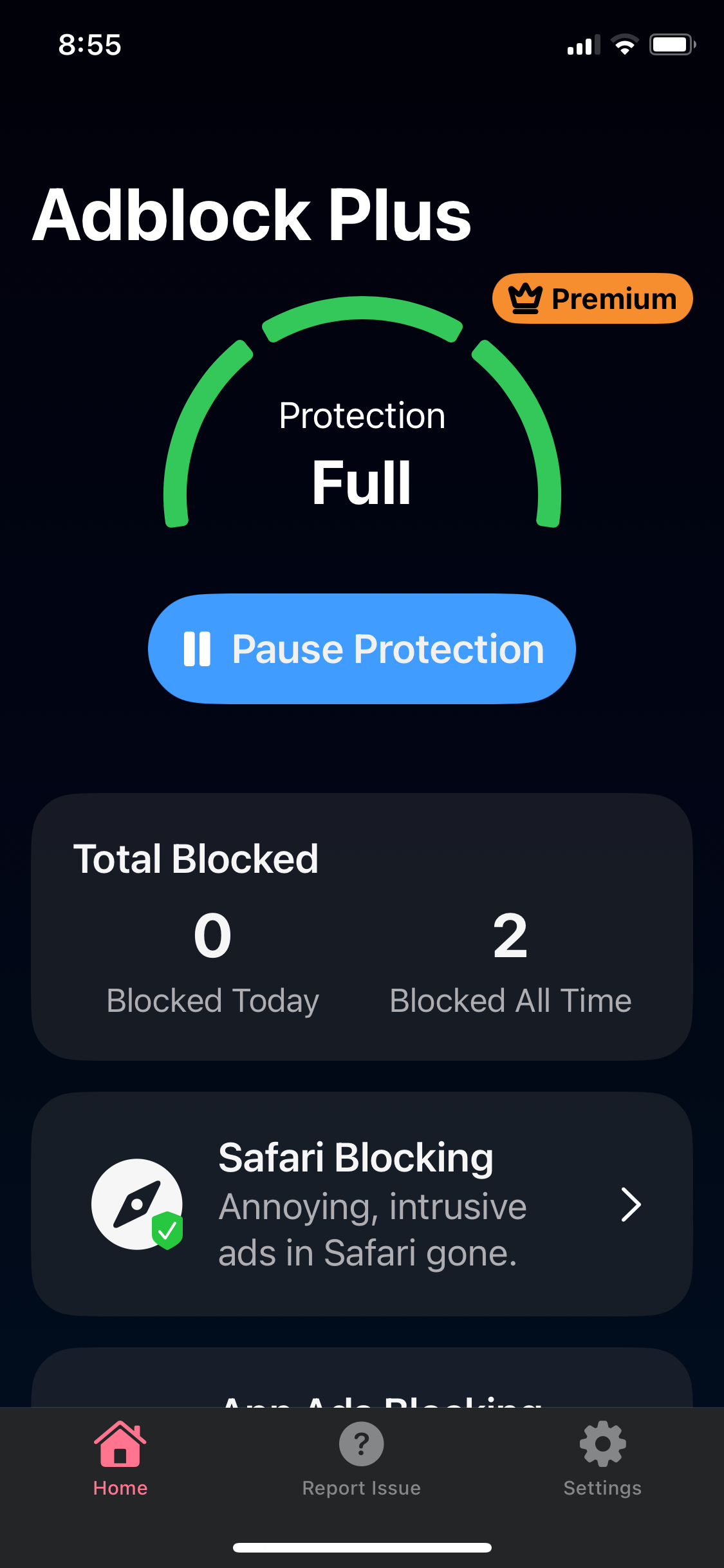
![IMG_3576.PNG](https://help.adblockplus.org/__attachments/a_a8a6d0330797ff797bc30b94c60bceb31b82d9734eed00755ae21b98efa28ef7/IMG_3576.PNG?cb=80217e36e705b7f745354337af5bda14)

---
language: "en"
---
# Manage Filters

---
language: "en"
---
# Manage your Adblock Plus account

## What is the Account Management page?

On the Account Management page you can see your renewal date, update your billing details, and cancel the auto-renewal of your subscription. The Account Management page can only be accessed using a desktop browser.

## Access the Account Management page

1. Click the **Adblock Plus** icon on your browser's toolbar.  
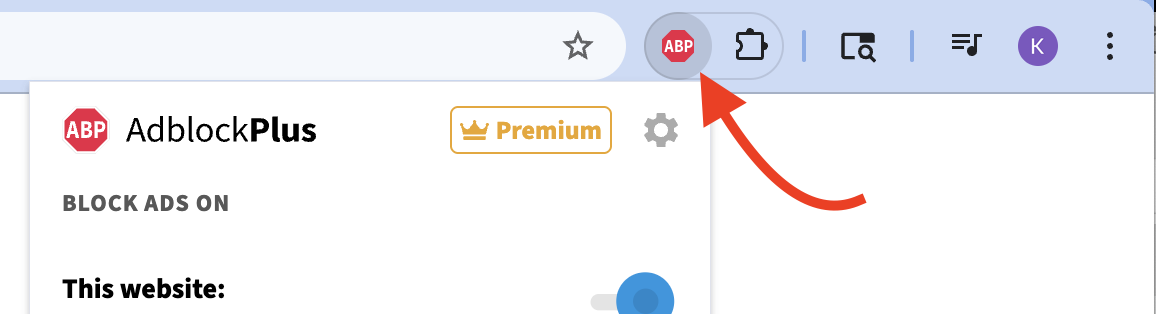
![69c2d4fbb1bf0.42433288171795.png](https://help.adblockplus.org/__attachments/a_85a5d4eb5b5625ea3853569b5e2f55d19b5507a0e2d9969e1b494630ec9eaa36/69c2d4fbb1bf0.42433288171795.png?cb=68f454fc930201b24186f03c9fdebede)

2. Click the **gear**icon on the pop-up menu.  
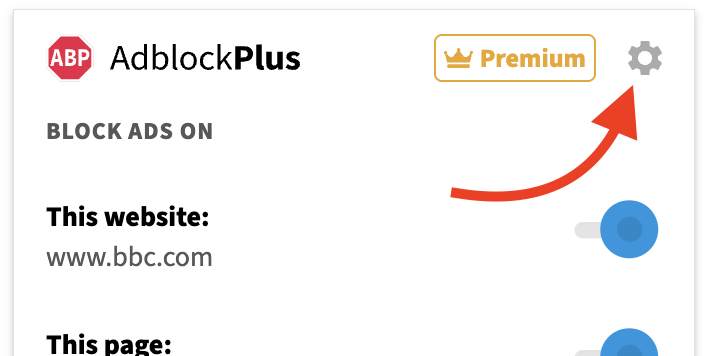
![gear_2.png](https://help.adblockplus.org/__attachments/a_04aa66b86c8d39a77fcf07fb11f0db281226f61157da88f349cb75e2e4dde373/gear_2.png?cb=96907a58f034ebe59e7ceebf98640a60)

3. On ABP's Settings page, click on **Manage my subscription** or**My Account**.  
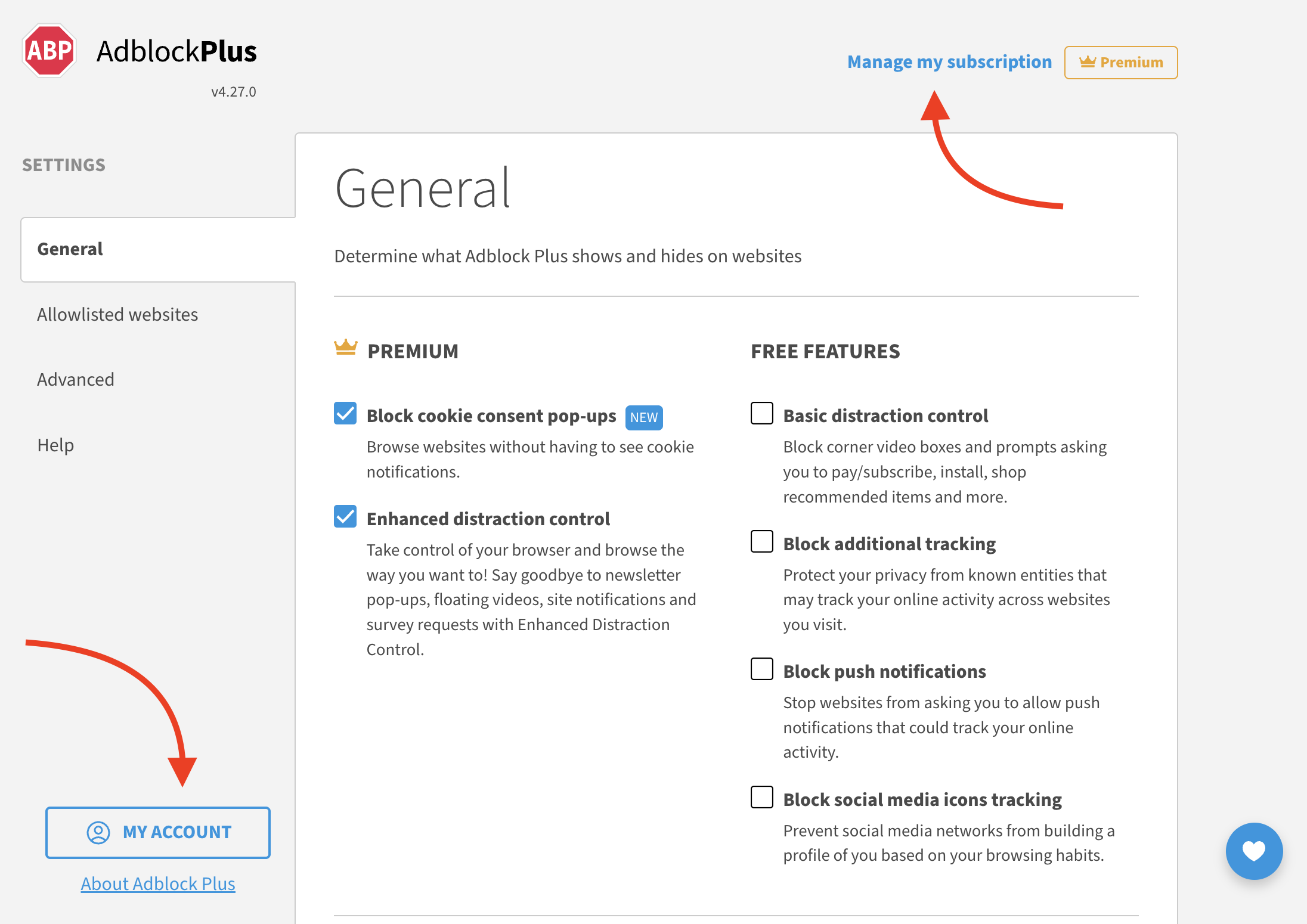
![account_3.png](https://help.adblockplus.org/__attachments/a_294c6a045bec966fc19195325bd26332d36f36a3a994fd81f475441ebeca3bd9/account_3.png?cb=ba88222cecc624c2c6d5ae0999a611d4)

4. Enter the email address associated with your subscription and click **Send code**.  
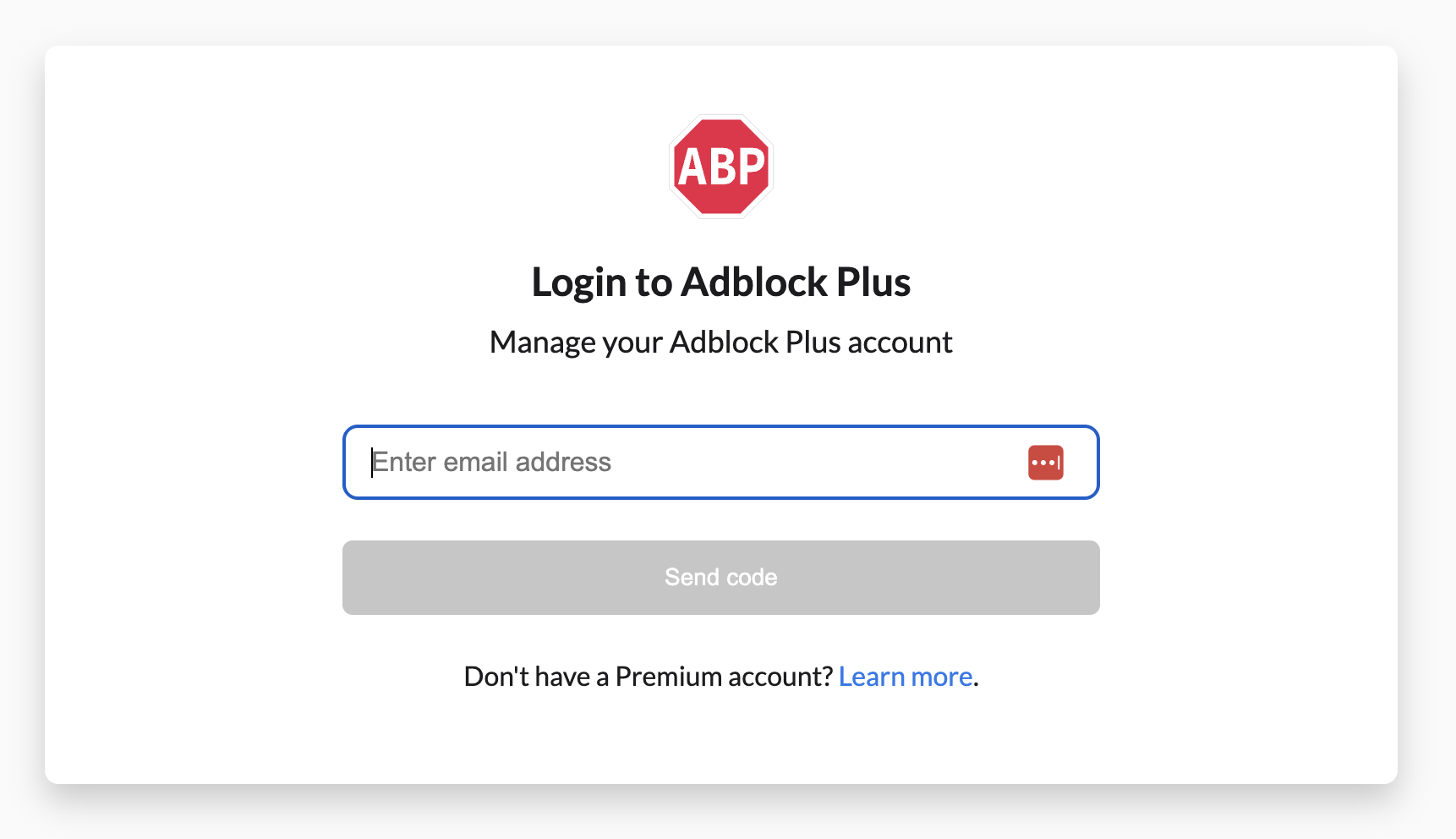
![login_4.png](https://help.adblockplus.org/__attachments/a_54ca5f8f504036a89a6e5259023d648813e20b121bf31dd66f1c600e3f2c305f/login_4.png?cb=d6967a73f0dbfa9008e3fd9916b049ca)

5. Enter the code in the field provided.  
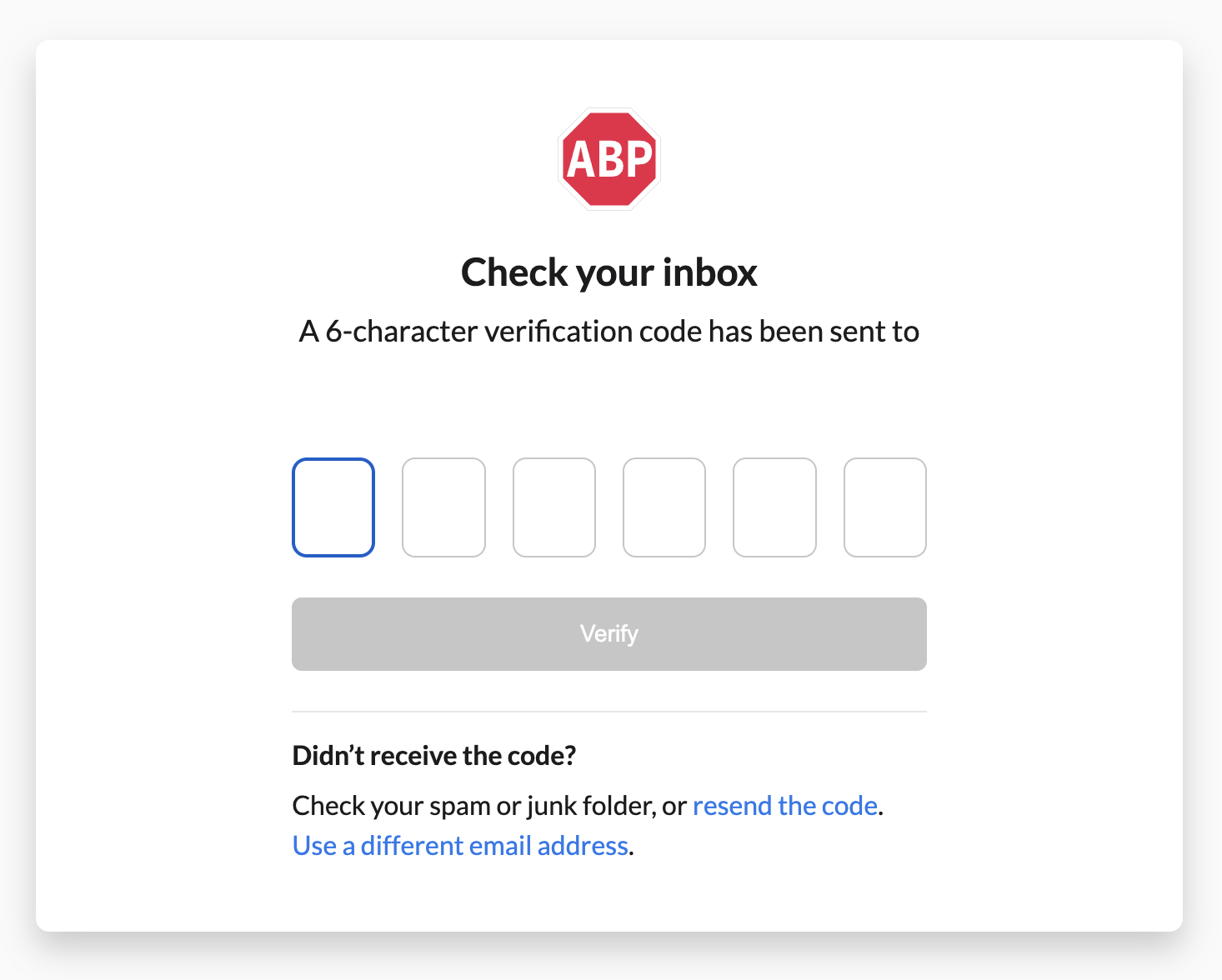
![code_5.png](https://help.adblockplus.org/__attachments/a_58a065deafda9f943efd0d77c7a4d0ad7f6392b67934b2ac62d284a5c36e7b67/code_5.png?cb=189d21a07efa27f706473574619a3dbd)

## Encountered a problem?

If you didn't receive a code, be sure to check your spam folder. For all other issues, please reach out to us for assistance: [Submit a ticket](https://help.adblockplus.org/hc/en-us/requests/new).

---
language: "en"
---
# Only allow ads without third-party tracking

## What are ads without third-party tracking?

Acceptable Ads without third-party tracking are ads that comply with the [Acceptable Ads](https://help.adblockplus.org/adblock-plus-help-center/what-are-acceptable-ads) criteria and that do not allow third-party entities to track any of your browsing behavior. These are ads that comply with Do Not Track and/or first-party ads served by the same domain you are visiting.

## Enable the setting

You must be using a desktop browser and have both **Allow Acceptable Ads** and **Do Not Track (DNT)** turned on.

1. Click the **Adblock Plus** icon on the browser toolbar, then the **gear** icon in the upper-right corner.

💡  
[What if I don't see the Adblock Plus icon?](https://help.adblockplus.org/adblock-plus-help-center/hide-or-show-the-adblock-plus-icon-on-your-browser-s-toolbar)

2. From the *General* tab, scroll to the *Acceptable Ads* section.

3. Select the check box labeled **Only allow ads without third-party tracking**.

4. Close the tab.

---
language: "en"
---
# Other Issues

[Next Page](https://help.adblockplus.org/llms-full.txt/1)
